Compress a PDF to 50KB for a Government Form
A 50 KB limit is one of the most common rules on government and exam portals — for a photograph saved as a PDF, a signature, a short certificate or a single-page form. It is small enough that most free compressors miss it, returning a file that is still too big or so degraded it is rejected for being unreadable. If you are trying to compress a PDF to 50 KB for a government form, here is why it is tricky and how to land on 50 KB dependably.
Why a 50 KB limit catches people out
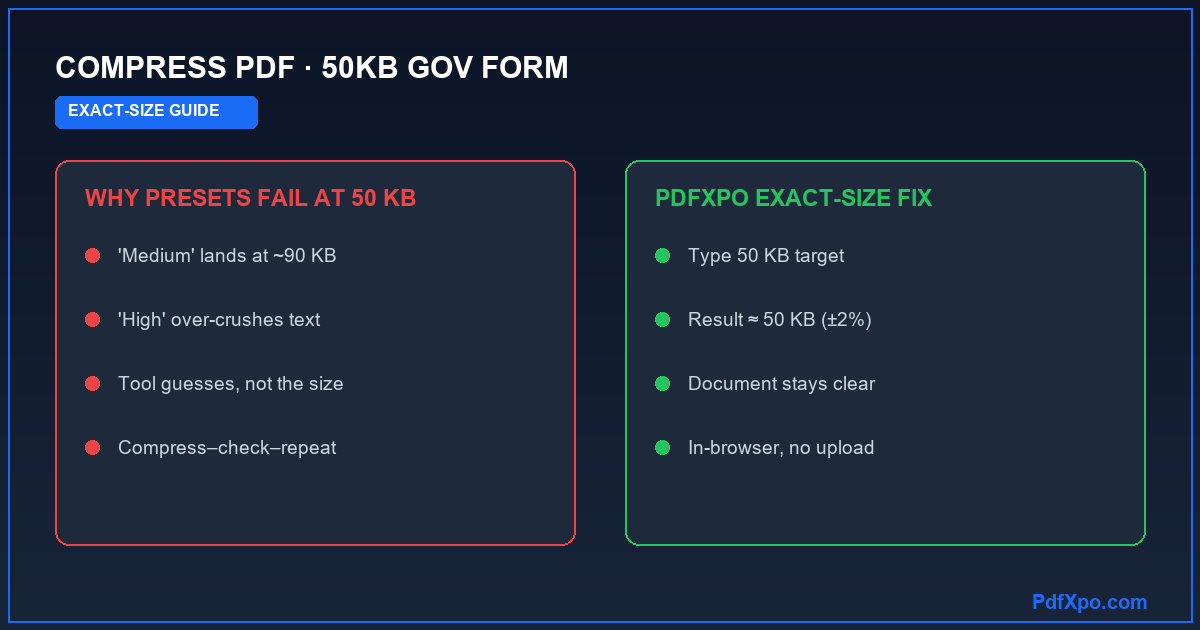
Generic "compress PDF" tools give you low / medium / high and aim at a quality level, not a size. Against a 50 KB target that means luck: one setting leaves the file at 90 KB, the next crushes it below readability. You end up compressing, checking, re-compressing — and still missing the number.
PdfXpo's exact-size mode removes the luck. You type 50 KB and the engine works backwards from it, testing compression until the file lands within roughly 2% of the target. For the content that belongs at 50 KB — a single page, a certificate, a signed form — it stays as clear as 50 KB allows while clearing the limit.
What fits comfortably at 50 KB
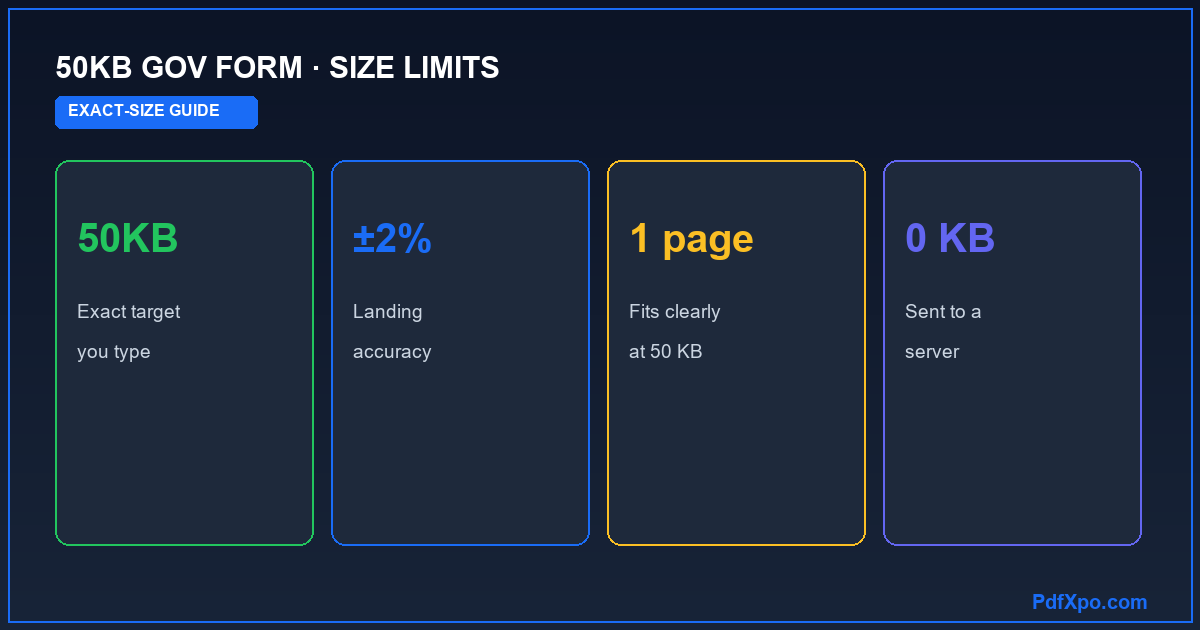
50 KB is more forgiving than 20 KB. It can usually hold:
- A single-page document or short certificate.
- A scanned form with a moderate amount of text.
- A signature or stamp with room to spare.
A long, multi-page colour document still will not reach 50 KB while staying readable — if a portal asks for a big document at 50 KB, check whether the limit applies to a single-page item instead.
How to compress a PDF to exactly 50 KB
- Save the document as a single PDF.
- Open PdfXpo's Compress to Exact Size tool and add the PDF.
- Type 50 KB as your target.
- Compress, open the result to confirm it is legible, and download. It lands within about 2% of 50 KB.
Fixing common "compress to 50 KB" problems
- Still over 50 KB — the document has too much detail; reduce to a single page or black-and-white, or confirm the real requirement.
- Text went blurry — that is generic over-compression; the exact-size approach keeps it as clear as 50 KB allows.
- Wrong format — if the field wants an image, prepare it as an image; if it wants a PDF, keep it as a PDF.
Before you upload your 50 KB file
- Confirm the portal wants 50 KB for this specific item.
- Compress to the exact 50 KB target.
- Open the file and confirm it is legible.
- Keep the full-size original — PdfXpo never changes it.
A worked example
A form field accepts a single-page certificate at 50 KB maximum. Your scan is 600 KB. A preset tool leaves it at 90–120 KB no matter which setting you pick, or over-crushes the text. In PdfXpo you type 50 KB, compress, and the certificate lands at about 50 KB with the text and stamp still clear — one pass, no compress-check-repeat loop.
How PdfXpo hits an exact file size — and why presets cannot
Almost every "compress PDF" tool online gives you three vague buttons — low, medium or high. You pick one, wait, download, and only then discover the new size, which is almost never the figure a portal demands. PdfXpo's exact-size mode is built the opposite way round. You type the size you actually need — 20 KB, 50 KB, 200 KB, 300 KB or 1 MB — and the engine works backwards from that target, testing compression levels until the file lands within roughly 2% of it. There is no trial and error and no re-uploading a PDF that is still a few kilobytes too big. You get a document that clears the limit on the first attempt while staying as sharp and legible as the size allows.
Why "file too large" keeps coming back
Three different problems all show up as the same red error, and only one of them is fixed by compressing:
- Size — the PDF is over the portal's KB or MB cap. This is the one an exact-size compressor solves.
- Dimensions or page count — some portals also limit the page size or the number of pages in a single upload.
- Format — the portal wants a PDF and you uploaded a JPG (or the other way round).
If compressing the file does not clear the error, the problem is dimensions or format rather than size — and knowing which one you are hitting saves a great deal of guesswork at the upload screen.
Documents are PDFs; photos and signatures are images
This is the single most common mix-up on exam and government portals, and it is worth getting right. A passport photograph and a specimen signature are usually JPEG images with their own tiny KB limits. Certificates, mark sheets, declarations, statements, ID scans and the application form itself are PDF documents. PdfXpo is a PDF tool, so it is the right fit for the document side — shrinking a scanned certificate or a multi-page form to the exact PDF size the portal accepts. For a JPEG photo or signature you would use an image resizer instead. Uploading the wrong file type, or compressing the wrong thing, is the usual reason an upload still fails after you thought you had already "compressed" it.
Your documents never leave your device
Everything PdfXpo does runs locally inside your browser through WebAssembly. When you compress an income certificate, an Aadhaar or national-ID scan, a degree certificate or a bank statement, the file is processed in your own browser's memory and is never sent to any server — unlike Smallpdf, iLovePDF or Adobe, which upload your file to their cloud to process it. For identity and financial paperwork that is precisely the guarantee you want. You can confirm it yourself: open your browser's developer tools, switch to the Network tab, and compress a file — you will see no request carrying your document's contents leave the page. It is also completely free, with no sign-up, no email, no watermark and no daily limit, so you can prepare an entire application's worth of documents in one sitting.
How small is too small? Balancing the limit and readability
It is tempting to compress as hard as possible "to be safe", but going far below a portal's limit can backfire: a certificate squeezed to a fraction of the cap may turn blurry and be rejected at verification for being unreadable. The goal is not the smallest possible file — it is a file that sits comfortably under the limit while staying perfectly clear, and that is exactly what compressing to an exact size gives you. If a portal allows 300 KB, target 300 KB (or a touch under), not 50 KB; you keep the maximum quality the rule permits. Scanning well in the first place helps too: a flat, evenly-lit scan at a sensible resolution compresses far more cleanly than a dark, skewed phone photo, so you reach the target size with more detail intact. When in doubt, compress, open the file, and read it at 100% before uploading — thirty seconds of checking saves a rejected application.
Official source, accuracy and last review
Upload-size rules change between cycles and portal updates, so always confirm the current figures on your form's own official guidelines before you submit — this guide explains the method, but the portal's own notification is the final word. PdfXpo is a free, in-browser PDF toolkit; for the underlying tools see Compress PDF and Compress PDF to an exact size. Related guides: compress a PDF to 20 KB, and portal-specific help such as compressing for an NSP scholarship or for Passport Seva. This page is maintained by the PdfXpo team and was last reviewed in June 2026.
100% Local Privacy
Your files never leave your computer
Local Browser Power
Instant Processing in Browser
Secure Client-Side Processing
Data is handled entirely within your browser for maximum security
How to Compress a PDF to 50KB for a Government Form — Step by Step
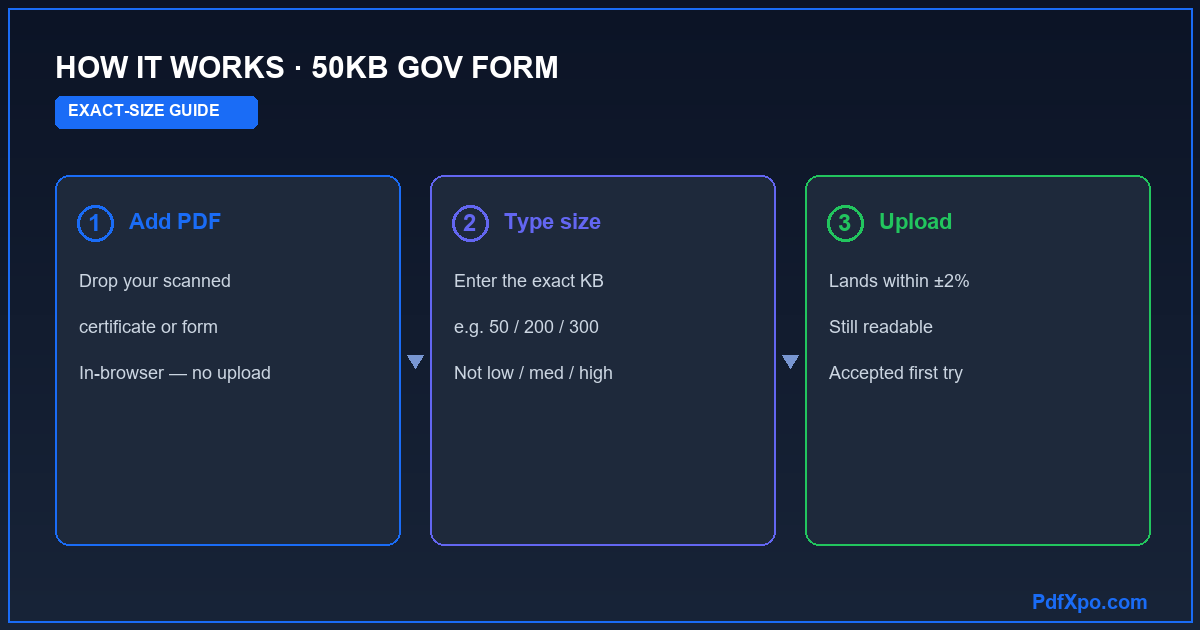
1. Open the free Compress PDF tool at PdfXpo.com — no account, no install, nothing to download. Drag your scanned certificate, mark sheet or document PDF into the box. It loads inside your browser, so the file is never uploaded to any server — which matters when the document carries your name, ID number or financial details.
2. Type the exact size the portal allows — for example 50 KB, 200 KB, 300 KB or 1 MB — into the target-size field. Instead of guessing with a vague 'low / medium / high' slider, PdfXpo works backwards from your number and compresses the PDF until it lands within about 2% of the target.
3. Click Compress, open the result to confirm the text and stamps are still readable, then download it instantly — no watermark, no daily limit, and your original file untouched on your device. Upload the right-sized PDF to the portal and it goes through on the first attempt, with no 'file size exceeded' rejection.
Why PdfXpo for Exact-Size Portal Compression
A 50 KB rule is where exact-size compression quietly wins: presets aim at a quality level and miss the number, while PdfXpo aims at 50 KB and lands within about 2%. It keeps a certificate or signed form as clear as 50 KB allows, runs entirely in your browser so the file is never uploaded, and is free, unlimited and watermark-free — with your original left exactly as it was.
Common Questions
How do I compress a PDF to exactly 50 KB?
Open PdfXpo's Compress to Exact Size tool, drop in your PDF, type 50 KB as the target, and compress. It lands within about 2% of 50 KB.
Why does my file end up too big or unreadable with other tools?
Preset compressors aim at a quality level, not a size, so against a 50 KB target they overshoot or over-crush. PdfXpo aims at your exact KB number, so it lands near 50 KB without destroying legibility.
What can fit at 50 KB?
A single-page document, a short certificate, a scanned form with moderate text, or a signature. A long multi-page colour document cannot reach 50 KB while staying readable.
My document won't go under 50 KB — what now?
It is too detailed for 50 KB. Reduce it to a single page or black-and-white, or check whether the 50 KB limit really applies to this file or to a single-page item.
Is my document uploaded to compress it?
No. PdfXpo compresses in your browser via WebAssembly, so your file never leaves your device.
Is the 50 KB PDF compressor free?
Yes — free, unlimited, no signup and no watermark.