Advanced Image Layouts for Professional Reports (2026)
We have all been there. You have a perfectly formatted 50-page legal brief. You insert one image, and suddenly, the text on page 12 vanishes, and your signature line is now on page 60. This is the "Geometry Trap" of Microsoft Word.
Most users never move beyond the "In Line with Text" default. But for professional, high-authority documents—the kind that need to stay perfect even after being converted to PDF—you must master the science of Anchors and Wrapping Boundaries.
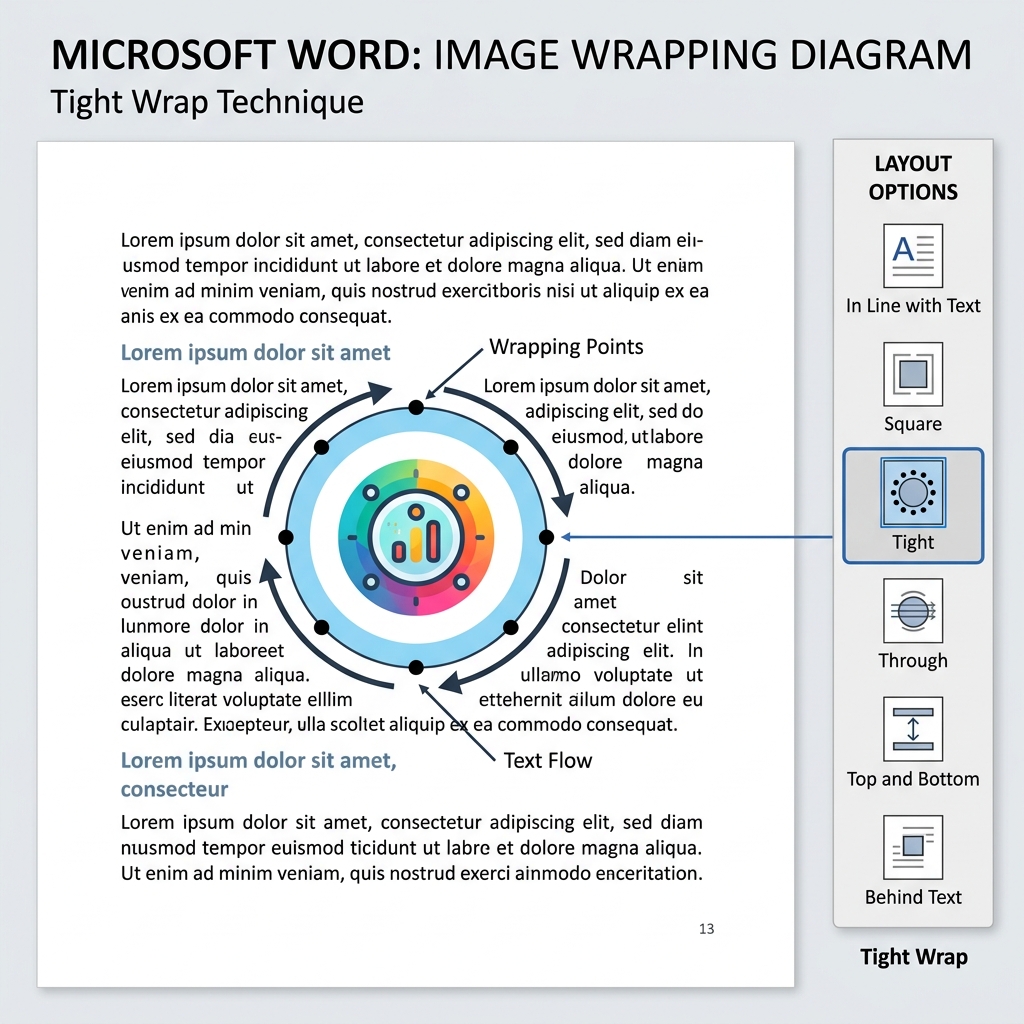
Above: A technical breakdown of 'Tight' wrapping with visible 'Edit Wrap Points.' These handles allow you to force text to hug the contours of your visual assets.
The Geometry of Wrapping: Beyond "Square"
Text wrapping isn't just about putting a picture next to text; it's about defining the Negative Space around your data.
1. Tight vs. Through: The Professional Choice
2. Editing Wrap Points (The Secret Menu)
To get that truly professional "Magazine Look," right-click your image and select Wrap Text > Edit Wrap Points. You will see red lines with black dots. Drag these dots to precisely control how close the text gets to your image. This is essential for irregularly shaped graphics.
Mastering the "Anchor" (The Invisible Chain)
Every image that isn't "In Line" is anchored to a specific paragraph. If that paragraph moves, the image moves.
The Golden Rule: Always turn on your Anchor Symbols (File > Options > Display > Object Anchors). If you see a small anchor icon, that is where your image is technically "attached."
Pro Tip: Locking the Anchor
In high-stakes reports, you often want an image to stay on a specific page, regardless of text flow.
1. Right-click the image > Size and Position.
2. Go to the Position tab.
3. Check "Lock Anchor."
4. Set the Vertical/Horizontal position relative to the Page, not the Paragraph.
Why Layouts Break During PDF Conversion
When you use PdfXpo's Word to PDF tool, our engine performs a forensic check on your anchors. Most "broken" PDFs happen because the original Word document used "Floating" images without locked anchors.
By using "Fix Position on Page," you ensure that your PDF remains 100% compliant with court and government filing standards (like IRS MeF or PACER).
Troubleshooting: "My Image is Hidden Behind the Text"
This happens when you select "Behind Text" and then lose the image. To find it, go to the Home tab, click Select (on the far right), and open the Selection Pane. This "Layer List" allows you to click and select any hidden or "Behind" objects instantly.
---
Word to PDF | Flatten PDF | Compare PDF | Compress PDF