Best Free PDF Tools for Mac in 2026 — No Adobe Required
Mac users have a reasonable built-in PDF tool in Preview. But the moment you need to compress a PDF, convert it to Word, redact sensitive information, or do anything beyond basic annotation, Preview cannot help. And Adobe Acrobat Pro — the obvious go-to — costs $239 per year.
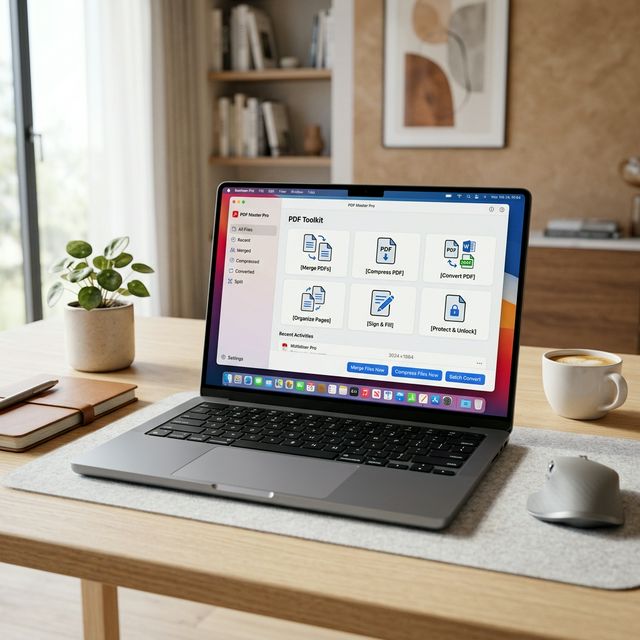
In 2026 you do not need to pay that. There are genuinely good free PDF tools available for Mac, both browser-based and native apps. This guide covers the best options, what each one is actually good for, and how to combine them to handle every PDF task without spending anything.
What macOS Preview Can and Cannot Do
Before adding any third-party tools, it is worth knowing exactly where Preview draws the line. Preview is built into every Mac running macOS Ventura, macOS Sonoma, and macOS Sequoia, and it is more capable than most people realize.
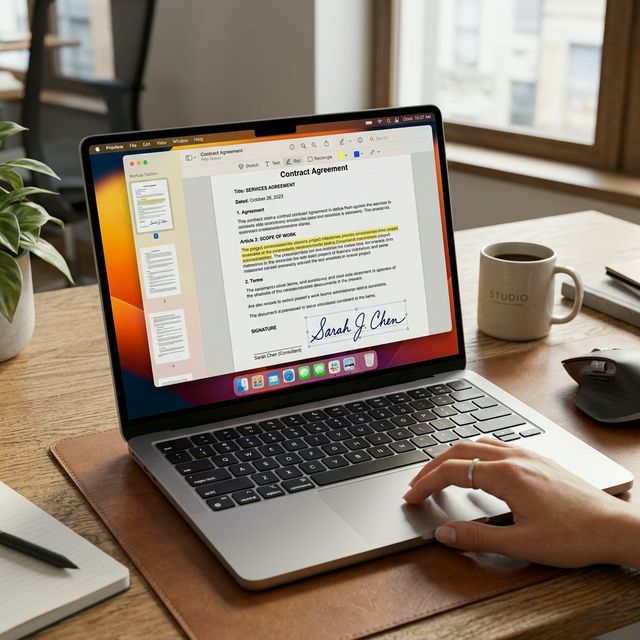
Preview can:
Preview cannot:
For everything in the second list, you need additional tools.
Best Browser-Based PDF Tools for Mac in 2026
Browser-based tools are ideal for Mac users because they require no installation, work on any Mac regardless of Apple Silicon or Intel chip, run on any macOS version from Catalina onward, and do not require App Store approvals or security exceptions.
PdfXpo — Best Free Browser-Based PDF Suite for Mac
PdfXpo is the most comprehensive free browser-based PDF toolkit available for Mac users in 2026. It runs entirely in Safari, Chrome, Firefox, or Edge on your Mac without any installation.
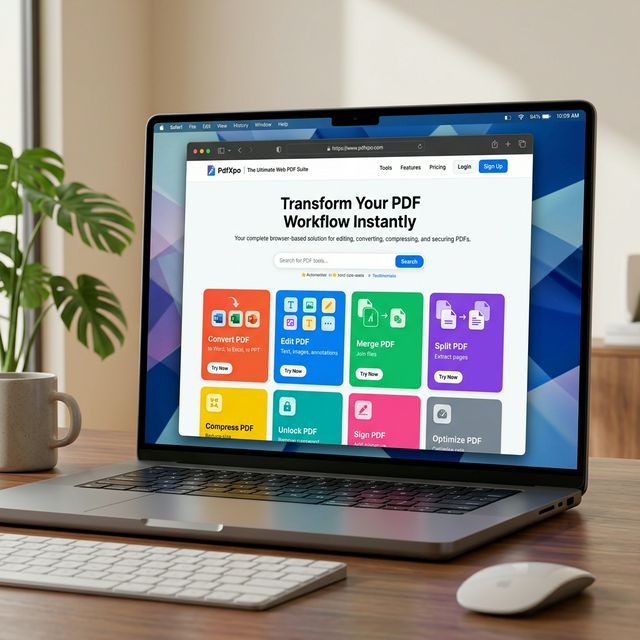
Core tools that run locally in your browser — meaning files never leave your Mac:
[Merge PDF](https://pdfxpo.com/merge-pdf) — combine multiple PDFs into one. Works the same as Preview's merge but handles larger files more reliably and works on any browser.
[Compress PDF](https://pdfxpo.com/compress-pdf) — significantly reduces PDF file size. This is one of Preview's biggest weaknesses. PdfXpo's compression is far more effective, routinely reducing a 20MB scanned document to under 3MB with no visible quality loss.
[Split PDF](https://pdfxpo.com/split-pdf) — extract specific pages or page ranges. Useful for pulling chapters out of large reference documents.
[Rotate PDF](https://pdfxpo.com/rotate-pdf) — fix pages that scanned at the wrong orientation.
[Organize PDF](https://pdfxpo.com/organize-pdf) — reorder, delete, or rearrange pages with a visual drag-and-drop interface.
AI-powered tools that process securely via encrypted connection:
[PDF to Word](https://pdfxpo.com/pdf-to-word) — convert PDF to an editable Word document. Preview has no equivalent. The output maintains heading structure and paragraph formatting for standard documents.
[PDF to Excel](https://pdfxpo.com/pdf-to-excel) — extract tables from PDFs into a real spreadsheet. Useful for financial documents and data-heavy reports.
[PDF to PowerPoint](https://pdfxpo.com/pdf-to-powerpoint) — convert a PDF presentation back into an editable slide deck.
[OCR PDF](https://pdfxpo.com/ocr-pdf) — extract searchable text from scanned documents. Makes old papers and physical-to-digital scans fully searchable and copyable.
[Redact PDF](https://pdfxpo.com/redact-pdf) — permanently remove sensitive information from a PDF. More reliable than Preview's manual markup approach.
[Summarize PDF](https://pdfxpo.com/summarize-pdf) — AI-generated summary of long documents. Useful for quickly assessing whether a document needs closer reading.
Additional tools: Protect PDF, Unlock PDF, Watermark PDF, Add Page Numbers, Sign PDF, Edit PDF, Compare PDF.
No signup. No watermarks. No file size limits.
ILovePDF — Good Free Backup
ILovePDF covers most standard PDF tasks and requires no account for basic operations. The interface has advertising but the tools function reliably. A reasonable backup when you need a quick task handled.
Smallpdf — Polished Interface, Limited Free Tier
Smallpdf has the most polished interface of the browser-based tools. Free tier limits you to two tasks per day, which works for very occasional Mac users but not for regular use.
Best Native Mac PDF Apps in 2026
Native apps offer deeper macOS integration — Spotlight search, iCloud sync, Continuity features, and better performance on Apple Silicon M1, M2, M3, and M4 chips.
PDF Expert by Readdle — Best Free Native Mac App
PDF Expert is widely regarded as the best native PDF app for Mac. The free version covers reading, annotating, highlighting, filling forms, and signing documents. Advanced editing — changing text content, replacing images — requires a paid upgrade.
For users who want the best reading and annotation experience on macOS with full Retina display support, Stage Manager integration, and Apple Silicon optimization, PDF Expert's free tier is excellent. The app is available on the Mac Store.
LibreOffice — Best for Offline Editing
LibreOffice is completely free, fully open source, and works entirely offline. The Draw module opens and edits PDFs, and you can save them back as PDF or export to Word format. Conversion quality on simple documents is reasonable. Complex layouts require manual correction.
For Mac users who work offline or in environments with restricted internet access, LibreOffice is the best fully free and fully offline option. Available at libreoffice.org.
Skim — Best for Academic Reading on Mac
Skim is a free, open source PDF reader specifically designed for academic use on macOS. It integrates with BibTeX and LaTeX workflows, has excellent annotation tools optimized for research, and syncs annotations with PDF sync tools used in academic publishing.
Not a PDF editor but the best free option for researchers, academics, and students doing serious literature review work on Mac. Available at skimapp.sourceforge.net.
Adobe Acrobat Reader — Free Reader, Paid Editor
Adobe's free Reader app for Mac handles reading, form filling, and basic signing reliably. Any editing requires an Acrobat subscription. Worth installing only if you frequently encounter PDFs that render incorrectly in other tools, or if you need to work with Adobe Sign workflows.
Mac-Specific PDF Workflow Tips
Use Continuity Camera for high-quality scanning — on Macs running macOS Ventura or later, you can scan a physical document directly into Preview using your iPhone camera. The scan quality is exceptional, especially on iPhone 14 and newer with the advanced camera system. Go to File → Insert from iPhone or iPad → Take Photo.
Quick Look before opening — press the Spacebar on any PDF in Finder to preview it instantly without opening a full app. Useful for quickly scanning files when managing large document collections.
Use Automator for batch compression — macOS includes Automator, which can batch compress PDFs without any third-party software. Create an Automator workflow with the "PDF: Scale PDF Pages" action. It takes 10 minutes to set up but handles bulk compression automatically thereafter.
Spotlight searches inside PDFs — macOS Spotlight can search text content inside PDF files. This works for digitally created PDFs and OCR-processed scans. Useful for quickly finding documents when you cannot remember the filename.
Preview sidebar for page management — Preview's sidebar view shows thumbnails of all pages. You can drag pages between documents, delete pages by pressing Delete, and reorder pages by dragging. For quick reorganization tasks, this is faster than any external tool.
Use iCloud Drive for cross-device access — PDFs saved to iCloud Drive are instantly available on iPhone and iPad. Useful for reviewing documents on any Apple device without emailing files to yourself.
Complete Mac PDF Tool Comparison
| Task | Best Free Option | Alternative |
|---|---|---|
| Read and annotate | Preview (built-in) | PDF Expert (free tier) |
| Sign documents | Preview (built-in) | PdfXpo Sign PDF |
| Merge PDFs | Preview or PdfXpo Merge | ILovePDF |
| Compress PDF | PdfXpo Compress | PDF24 |
| Convert to Word | PdfXpo PDF to Word | LibreOffice |
| Convert to Excel | PdfXpo PDF to Excel | — |
| Edit PDF text | PDF Expert (free tier) | LibreOffice |
| OCR scanned PDF | PdfXpo OCR | — |
| Redact sensitive info | PdfXpo Redact | — |
| Academic annotation | Skim | PDF Expert |
| Offline use | LibreOffice | Preview |
| Batch processing | Automator (built-in) | PdfXpo |
Frequently Asked Questions
Do I need Adobe Acrobat on Mac?
No. For most PDF tasks, Preview plus PdfXpo covers everything Adobe Acrobat does. Adobe is only necessary for specific enterprise workflows, advanced form creation, or Adobe Sign integration. For personal and professional use, free tools handle the full range of PDF tasks on Mac.
Can I compress a PDF on Mac for free without software?
Yes. Use PdfXpo Compress PDF in your Mac browser — Safari, Chrome, or Firefox all work. No installation required. The compression runs locally in your browser so nothing is uploaded anywhere.
What is the best free alternative to Adobe Acrobat on Mac in 2026?
PdfXpo for browser-based tools plus PDF Expert's free tier for native annotation and editing. Together they cover everything Adobe Acrobat does, at no cost.
How do I convert PDF to Word on Mac for free?
Open Safari or Chrome, go to pdfxpo.com/pdf-to-word, upload your PDF, and download the converted Word document. No signup required. Works on all Apple Silicon and Intel Macs.
Do these tools work on macOS Sequoia and Apple Silicon?
Yes. Browser-based tools like PdfXpo work on any Mac regardless of chip or macOS version. PDF Expert, LibreOffice, and Skim all have native Apple Silicon builds for M1, M2, M3, and M4 Macs.
Can I use PdfXpo offline on Mac?
The local tools — merge, split, compress, rotate, organize — work offline once the page has loaded, as processing happens in your browser. The AI tools require an internet connection for server-side processing.
Final Verdict
The best free PDF setup for Mac users in 2026 is:
Preview for reading, annotating, signing, and quick page management — it is already on your Mac and is genuinely good at these tasks.
PdfXpo for compression, conversion, OCR, redaction, and any task Preview cannot handle — free, no signup, covers the full range at pdfxpo.com.
PDF Expert (free tier) if you want a native Mac app with a better reading and annotation experience than Preview.
LibreOffice if you need fully offline editing capability.
Between these four tools, every PDF task a Mac user might face in 2026 is covered — without Adobe, without subscriptions, and without compromises.