How to Convert PDF to Word Without Losing Formatting — Complete Guide (2026)
Converting a sensitive PDF into an editable Microsoft Word document is often a nightmare for professionals. Microsoft Word handles layouts fundamentally differently than PDF formats—a difference that causes text to jump to random positions, tables to shatter, and typography to mutate into completely unrecognizable fonts.
If you are dealing with financial ledgers, legal contracts, or complex corporate pitch decks, a broken layout translates into hours of manual retyping and formatting. Worse, relying on "free" online OCR converters silently uploads your confidential documents to external cloud proxy servers, exposing you to severe data privacy risks.
This guide covers everything from basic conversion mechanics to advanced forensic vector mapping, with exact fixes for the most common layout destruction problems. Whether you are using Word on Windows or Mac, these step-by-step technical instructions will help you convert and edit your document layouts with absolute, uncompromised precision using safe, offline-capable tools.
---
1. The Anatomy of a Broken Document
Before diving into the exact conversion steps, it is critical to understand *why* your PDFs break when moving into Microsoft Word natively or through standard cloud-based converters.
A PDF (Portable Document Format) is essentially a digital piece of paper; it uses absolute X and Y coordinates to "paint" text and graphics onto a fixed grid. Microsoft Word (a DOCX file) is fundamentally a fluid word processor—it relies on text flow, margins, and cascading styles to arrange content dynamically.
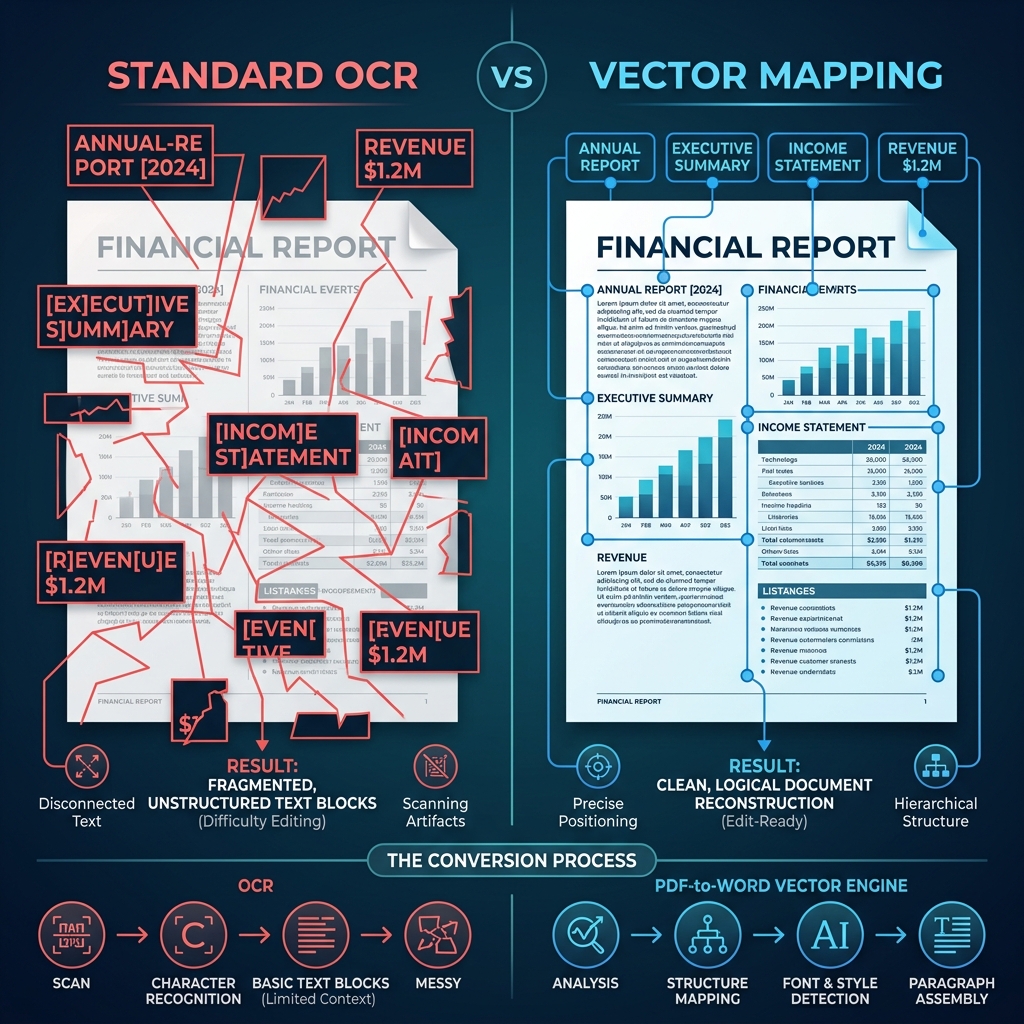
When a standard converter processes a PDF, it attempts to guess the underlying flow structure using basic Optical Character Recognition (OCR). The result is visual chaos:
To solve this, we must shift the conversion architecture away from standard visual OCR and move toward Vector Mapping Reconstruction.
---
2. Setting Up Forensic, High-Fidelity Conversion
To ensure 100% preservation of formatting, we utilize the PDF to Word WASM-SIMD engine. Unlike legacy tools that utilize visual guessing, this sovereign core processes the native XML and raw vector geometry of your PDF, projecting the exact X/Y anchor points directly into native Microsoft Word tags.
Activating the Sovereign Processing Core
1. Navigate to the Engine: Open your chosen conversion platform. We strongly advise utilizing local processing nodes to ensure no data leaves your physical device.
2. Establish the Sandbox: Once initialized, your browser allocates a segmented 512MB RAM heap. This isolated memory pocket is where the entire layout reconstruction will take place. This is crucial for privacy compliance (GDPR, HIPAA).
3. Upload the Source File: Drag and drop the PDF into the core dashboard. Do not use an active internet connection—the WASM engine will process the file internally.
By mapping coordinates rather than pixels, physical paragraphs act like real paragraphs. Multi-column academic layouts flow seamlessly from the left column to the right, rather than forcing you to construct artificial tab spaces.
---
3. Advanced Vector Reconstruction: Handling Complex Tables and Ledgers
If you are a financial analyst or legal clerk, the integrity of a data table is the most critical aspect of document conversion. Standard converters treat table borders as individual line graphics, scattering your financial data into staggered, unmanageable text frames.
To overcome this, you must rely on Table Reconstruction Topology mapping.
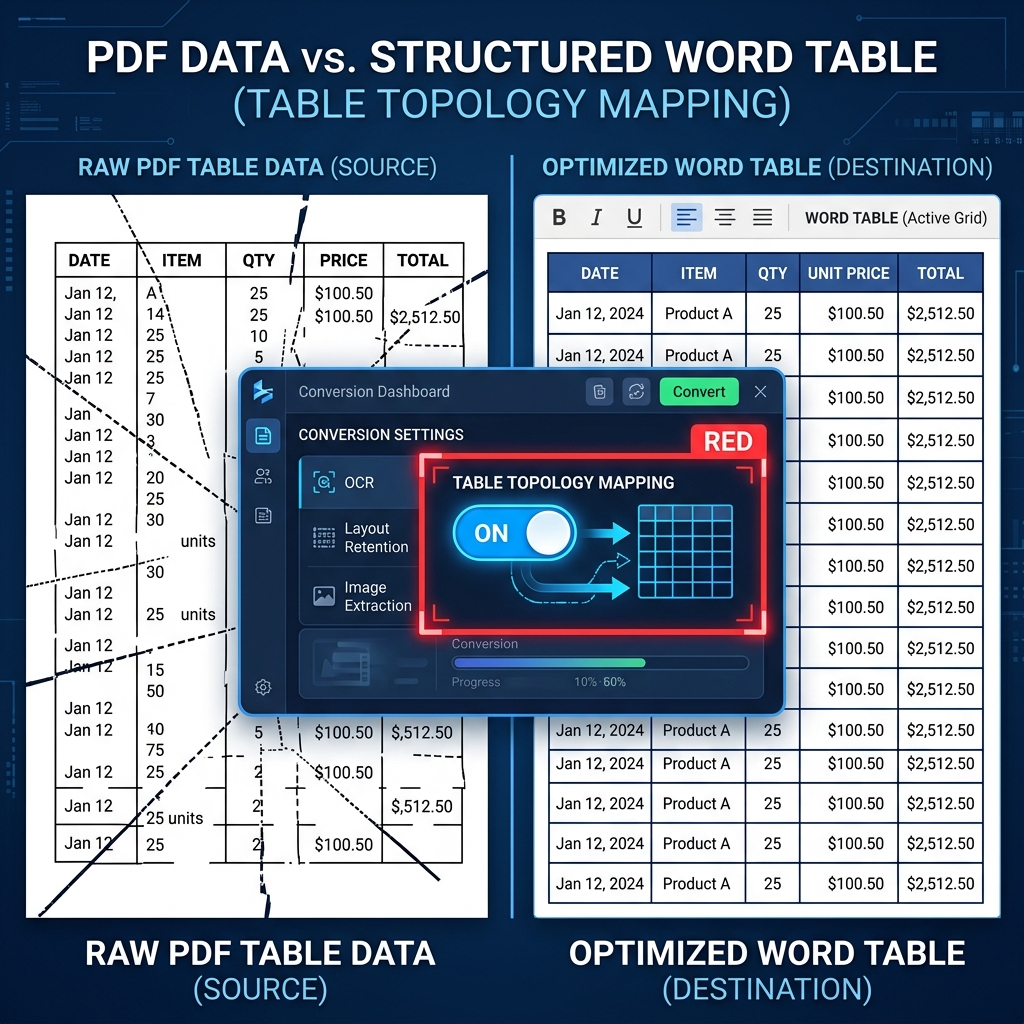
This ensures that when you finally open the file in Microsoft Word, you can click on the bottom corner of the table and seamlessly drag it to resize the entire structure. The columns expand dynamically, and the cell padding behaves exactly as if you had built the table natively within the Office suite.
---
4. Retaining Absolute Image Clarity (High DPI Mastery)
A common side effect of converting a graphically dense PDF into Word is severe image degradation. Logos become blurry, and diagrams suffer from intense macro-blocking artifacts.
This issue stems from Microsoft Word's default compression algorithms. When Word detects high-resolution images, it attempts to aggressively downscale them to 220 PPI to save hard drive space.
Stopping Microsoft Word Compression
You must manually disable Word's internal compression logic immediately upon opening your fully converted document:
1. Open Microsoft Word.
2. Navigate to File > Options.
3. Select Advanced in the left-hand menu.
4. Scroll to Image Size and Quality.
5. Check "Do not compress images in file".
6. Select High fidelity in the Default resolution menu.
*Golden Rule for Graphic Editors:* By executing this setting change, your high-resolution graphs and schematics will retain their absolute pixel density, identical to their original form in the source PDF.
---
5. The Anatomy of DOCX Reconstruction
To truly preserve formatting, our WASM core essentially "writes" a new software object in the Microsoft Office Open XML language.
---
6. Z-Index Layering and Text Wrapping Mastery
Even with precise mapping, you may encounter rendering quirks due to how Word interprets layering. One common issue is Z-Index Collision, where an image or shape acts as a background and blocks your text layer.
Correcting Layering Collisions
1. Click the image causing the issue.
2. Click the Layout Options (rainbow arc icon).
3. Under "With Text Wrapping", select Square or Tight.
4. This forces the text to wrap around the graphic intelligently.
By mastering this wrapping protocol, you regain absolute visual control over how graphical elements interact with your critical paragraphs.
---
7. Data Privacy and Governance: The WASM Sandbox
Security is paramount. Cloud-based converters send sensitive PDFs (with bank accounts or signatures) to remote servers, violating Zero-Trust corporate policies.
Why Local Processing is Superior:
---
8. Final Distribution: The Word-to-PDF Cycle
After editing your document in Word, the final step is usually returning to PDF for official distribution.
1. Export to PDF: Use Word’s "Save as PDF" or specialized Word to PDF tools.
2. Weight Optimization: If high-res images made the file too large, use the PDF Compressor to reduce size without destructive pixelation.
3. Forensic Lockdown: Apply an AES-256 password via Protect PDF to finalize the document’s security layer.
---
9. FAQ: Troubleshooting the Masterclass
Q: Why do legacy online converters break my formatting so severely?
A: Cost management. Cloud-based converters use cheap OCR scripts to minimize server CPU load. They sacrifice structural depth for speed. Local processing via the Document Intelligence Platform utilizes your machine's full core count for deep-tissue node mapping.
Q: What if a custom font is replaced by Arial or Times New Roman?
A: When a PDF is generated, fonts are often subsetted or flattened. Word can't "pirate" the font file from text nodes. If you lack the font locally, Word uses a substitute. To fix this, install the original `.ttf` font on your system before opening the converted file.
Q: Can your WASM engine handle massive 1,000-page manuals?
A: Yes. The only limit is your device's physical RAM. For massive documents, allow 5-10 seconds for the application heap memory to initialize before starting the conversion.
Q: Does keeping images at 'High Fidelity' slow down Microsoft Word?
A: Yes, if the core images are 4K or RAW. An uncompressed DOCX container multiple gigabytes in size may cause Word to stutter. If this happens, apply PDF-level compression *after* finalizing your work.
---
Conclusion: Sovereignty Over Your Document Infrastructure
Converting complex PDF layouts into editable Word documents doesn't have to be a failure. By abandoning cloud OCR in favor of local vector reconstruction, you maintain the integrity of your most sensitive technical data. Follow the layers (Z-index), manage your compression settings, and always 'lock' your final draft in PDF format to ensure your professional reputation stays intact across every device.