Best Free PDF to Word Converter in 2026 — No Signup, No Limits
You have a PDF. You need an editable Word document. This should be a five-second task in 2026. Instead, most tools make you create an account, show you a download button that leads to a paywall, or give you a document plastered with watermarks.
We tested every major free PDF to Word converter available in 2026 and ranked them on output quality, privacy, ease of use, and — most importantly — whether they are actually free. Here is what actually works.
Why PDF to Word Conversion Is More Complex Than It Looks
A PDF is not a Word document with a different file extension. It is a fixed-layout format that locks everything — text, images, tables, fonts, spacing — into precise positions on a page. Converting it back to an editable Word document means reverse-engineering that layout: figuring out what is a heading, what is body text, what is a table, what is a text box, and how everything relates to each other.
Simple text-based PDFs convert cleanly. Complex layouts with multiple columns, embedded tables, unusual fonts, or mixed text and images are harder. No free tool gets every PDF perfect — but the best ones handle the vast majority of real-world documents well.
Understanding this helps set realistic expectations. If your converted document needs minor cleanup on a complex layout, that is normal. If it needs major reconstruction, the PDF was probably one of the harder cases.
The Best Free PDF to Word Converters in 2026
1. PdfXpo PDF to Word — Best for Privacy and Daily Use
PdfXpo's PDF to Word converter is the strongest option for users who convert files regularly and care about document privacy. The conversion runs in your browser, meaning your file is never sent to an external server. For contracts, medical records, financial documents, legal papers, or any sensitive file, this matters significantly.
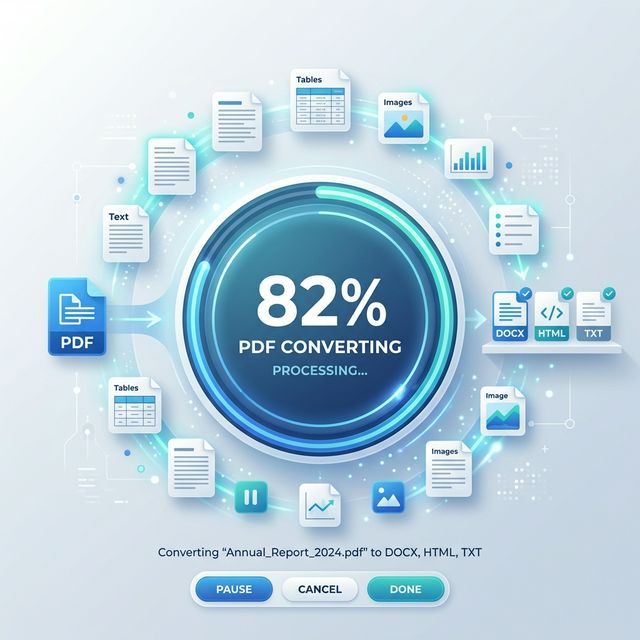
The output quality is strong for standard text-based PDFs. The converter detects layout structure — identifying headings by font size, paragraphs by spacing, tables by alignment patterns — and maps them to the correct Word styles. The result opens in Word as a properly formatted document rather than a wall of unstyled text.
Key advantages for regular users:
For scanned PDFs that contain images rather than text, use PdfXpo's OCR tool first to extract the text, then convert to Word.
2. Adobe Acrobat Online — Best Output Quality
Adobe invented the PDF format and makes the most accurate PDF to Word converter available. The layout preservation on complex documents — multi-column articles, formatted reports, documents with mixed images and text — is noticeably better than any free alternative.
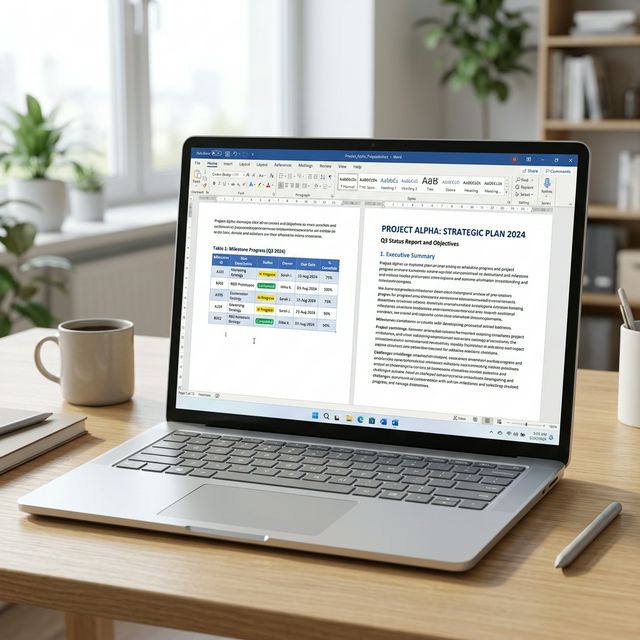
The limitation is access. Adobe requires a free account and limits conversions on the free tier. For one important document where quality is the top priority and you do not mind creating an account, Adobe is worth using. For regular daily conversions, the free tier runs out and pushes you toward a subscription.
3. Smallpdf — Good Quality, Restrictive Free Tier
Smallpdf produces good quality output with clean formatting on standard documents. The free tier limits you to two conversions per day and requires signing in with a Google or email account to download. For very occasional use this is manageable. For anyone converting files regularly, the daily cap is a real constraint.
4. ILovePDF — Reliable, No Signup Needed
ILovePDF allows PDF to Word conversion without creating an account. Output quality is consistent on standard documents. The interface has more advertising than competitors but the tool functions reliably. A reasonable backup option when you need a quick conversion without signing up anywhere.
5. LibreOffice — Best Offline Converter
LibreOffice Writer can open PDFs directly and save them as DOCX files. It is completely free, requires no internet connection, and processes everything locally. Conversion quality on simple documents is decent. Complex layouts often need significant manual correction. For users who prefer fully offline tools or work without reliable internet access, this is the best option available.
How to Get the Best Results from PDF to Word Conversion
The quality of the output depends heavily on the PDF you start with. Here is how to maximize results:
Use a digitally created PDF rather than a scan — PDFs created from Word, Google Docs, or other software contain actual text data. Scanned PDFs contain only images. Digitally created PDFs convert far more cleanly.
For scanned PDFs, run OCR first — use PdfXpo's OCR tool to extract text from a scanned PDF before attempting Word conversion. OCR converts the image to actual text, which converts far more accurately.
Check the output before using it — always review the converted document. Spot-check headings, verify table structures, and confirm that special characters converted correctly.
For tables specifically — PDF tables sometimes break during conversion. If a table is complex, it may be faster to rebuild it manually in Word rather than spending time correcting a badly converted version.
Use the source document if available — if you created the PDF yourself from a Word document, go back to the original Word file. Conversion is only necessary when you do not have the source.
PDF to Word vs PDF to Other Formats
Sometimes Word is not actually what you need. Here is a quick guide:
Need to edit text and format the document — convert to Word using PdfXpo PDF to Word.
Need to work with data in a table or spreadsheet — convert to Excel using PdfXpo PDF to Excel.
Need to present the content as slides — convert to PowerPoint using PdfXpo PDF to PowerPoint.
Just need to extract images from a PDF — use PdfXpo Extract Images.
Need to make a scanned PDF searchable without converting it — use PdfXpo OCR PDF.
Privacy Comparison: Which Tools Upload Your Files?
This is the question most people do not think to ask — but should.
| Tool | File uploaded to server? |
|---|---|
| PdfXpo (local tools) | No — processes in your browser |
| Adobe Acrobat Online | Yes |
| Smallpdf | Yes |
| ILovePDF | Yes |
| LibreOffice | No — fully offline |
For documents containing personal information, confidential business data, legal content, or medical records, local processing is the correct choice. PdfXpo and LibreOffice are the only options that keep your file entirely on your device.
Frequently Asked Questions
Is PdfXpo PDF to Word actually free?
Yes, completely. No signup, no payment, no watermark, no daily limit. Convert as many PDFs as you need.
Why does my converted Word document look different from the original PDF?
PDF and Word use fundamentally different layout systems. PDF locks everything to exact positions. Word flows text and adjusts based on margins, fonts, and page size. Some reformatting is normal, particularly on complex layouts. Simple documents convert with very high fidelity.
Can I convert a scanned PDF to Word?
Yes, but you need OCR first. Use PdfXpo OCR PDF to extract the text from the scanned document, then convert to Word. Direct conversion of a scanned PDF without OCR will produce a Word document containing an image, not editable text.
Does PDF to Word conversion work on Mac?
Yes. PdfXpo works in any browser on macOS including Safari, Chrome, Firefox, and Edge. No installation required.
What is the maximum file size for PDF to Word conversion?
PdfXpo does not impose file size limits. Conversion speed depends on your device's processing power and the complexity of the document.
Is it safe to convert confidential documents online?
With PdfXpo, yes — the conversion runs locally in your browser so your file is never transmitted anywhere. For other online tools that upload to servers, use your judgment based on the document's sensitivity.
Final Verdict
For most users in 2026, PdfXpo PDF to Word is the best free converter for regular use. No account, no limits, no watermarks, and full privacy through local processing.
For a single high-stakes conversion where maximum layout accuracy matters — a complex annual report, a heavily formatted legal document — Adobe Acrobat online produces the best output, even if it requires a free account.
For completely offline conversion, LibreOffice is the only fully free option that never touches the internet.
Start your first free conversion at pdfxpo.com/pdf-to-word.