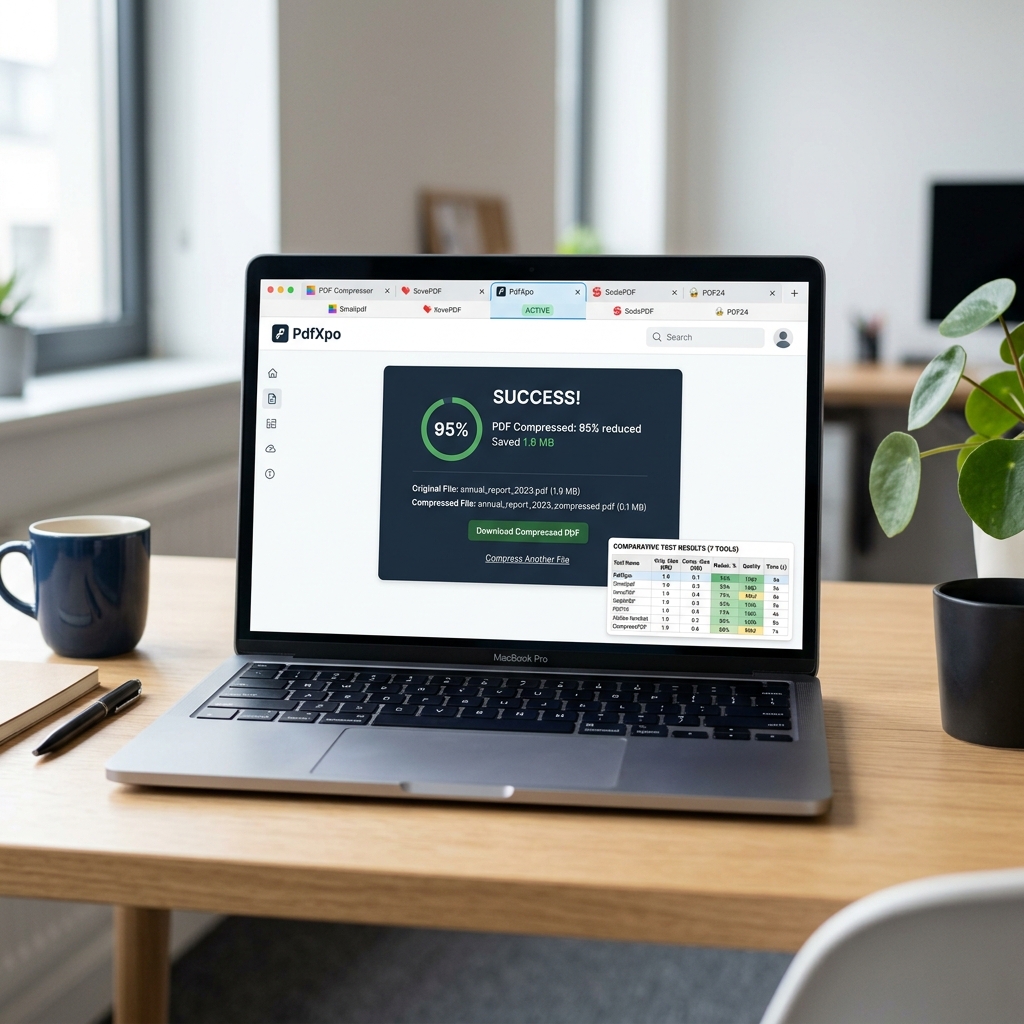
How We Tested: Methodology
Choosing the "best" tool isn't just about who makes the smallest file. In a professional environment, quality and security are equally critical. Our testing methodology was designed to simulate a high-stakes work week. We didn't just upload a file and look at the number; we audited the output.
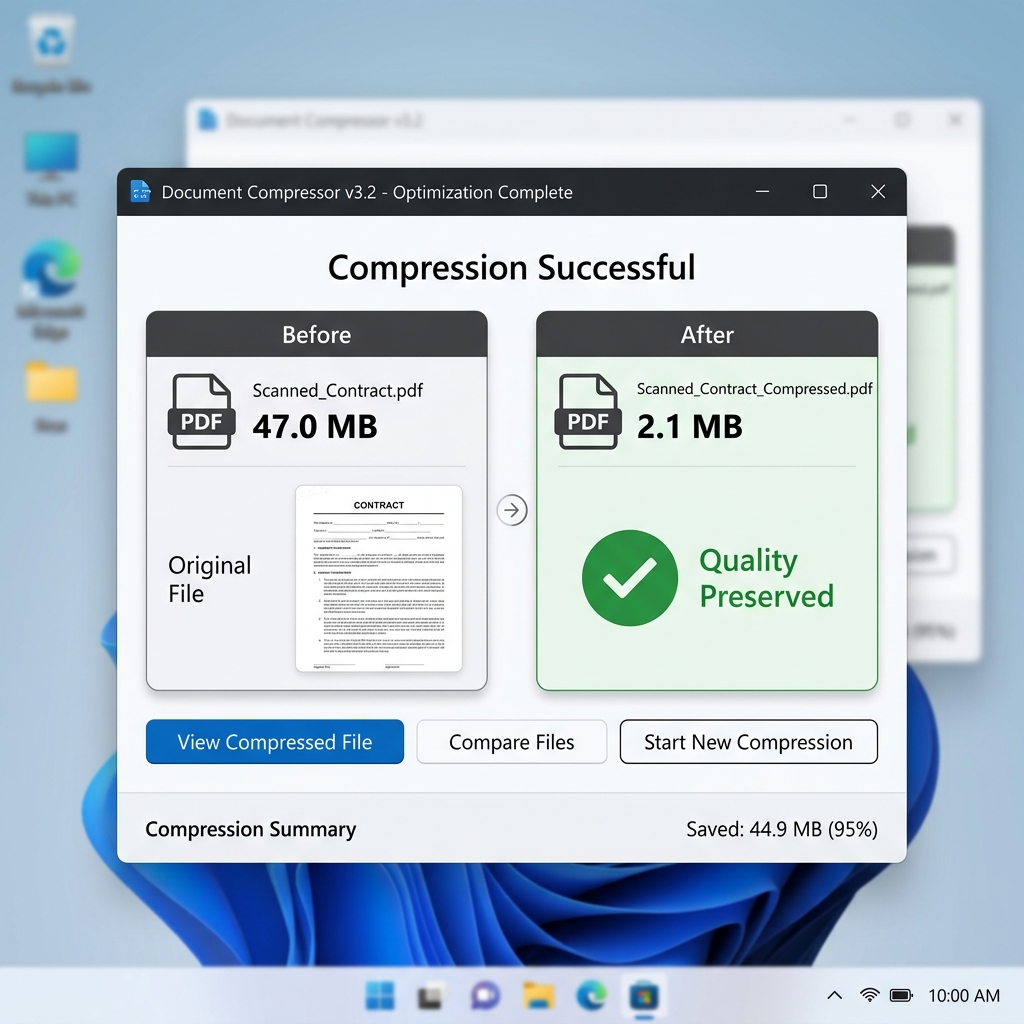
- 01Standardized Stress TestsWe used diverse file formats to test specific algorithm strengths. The 47MB scanned contract was used to test OCR preservation and noise reduction. The 12MB marketing report tested image resampling.
- 02Visual Integrity AuditWe checked output quality at 100% zoom (standard reading) and 400% zoom (investigative). We were looking for "artifacting"—the blurry pixels that often surround compressed text.
- 03Privacy Path AnalysisWe analyzed how each tool handles your data. Does it upload it to a server? How long is it stored? We specifically looked for WebAssembly (WASM) implementation which avoids server uploads entirely.
The 7 Tools On Our Radar
The market for PDF tools is saturated, but a few names dominate search results. We chose the seven most popular tools to see if their performance matches their fame. Our list includes the local pioneer PdfXpo, the established giant Adobe Acrobat Online, and popular web-based alternatives like iLovePDF, Smallpdf, PDF24, FreeConvert, and Sejda.
| Tool | Signup? | Quality | Privacy | Score |
|---|---|---|---|---|
| PdfXpo | Never | Excellent | Files stay local | 9.8/10 |
| PDF24 | No | Very Good | Server upload | 8.2/10 |
| iLovePDF | Required* | Good | Server upload | 6.8/10 |
| Smallpdf | Required | Good | Server upload | 6.5/10 |
| *Required for heavy use or large file downloads. | ||||
The biggest differentiator in 2026 is no longer just how well a tool can shrink a file; it's how it handles your information during the process. Most tools achieve similar results by resampling images to 72 or 96 DPI, but the infrastructure behind the tool determines your privacy. PdfXpo is the standout leader because it processes PDFs directly within your browser using WebAssembly. This means your private contracts, medical documents, and tax returns never touch a third-party server.
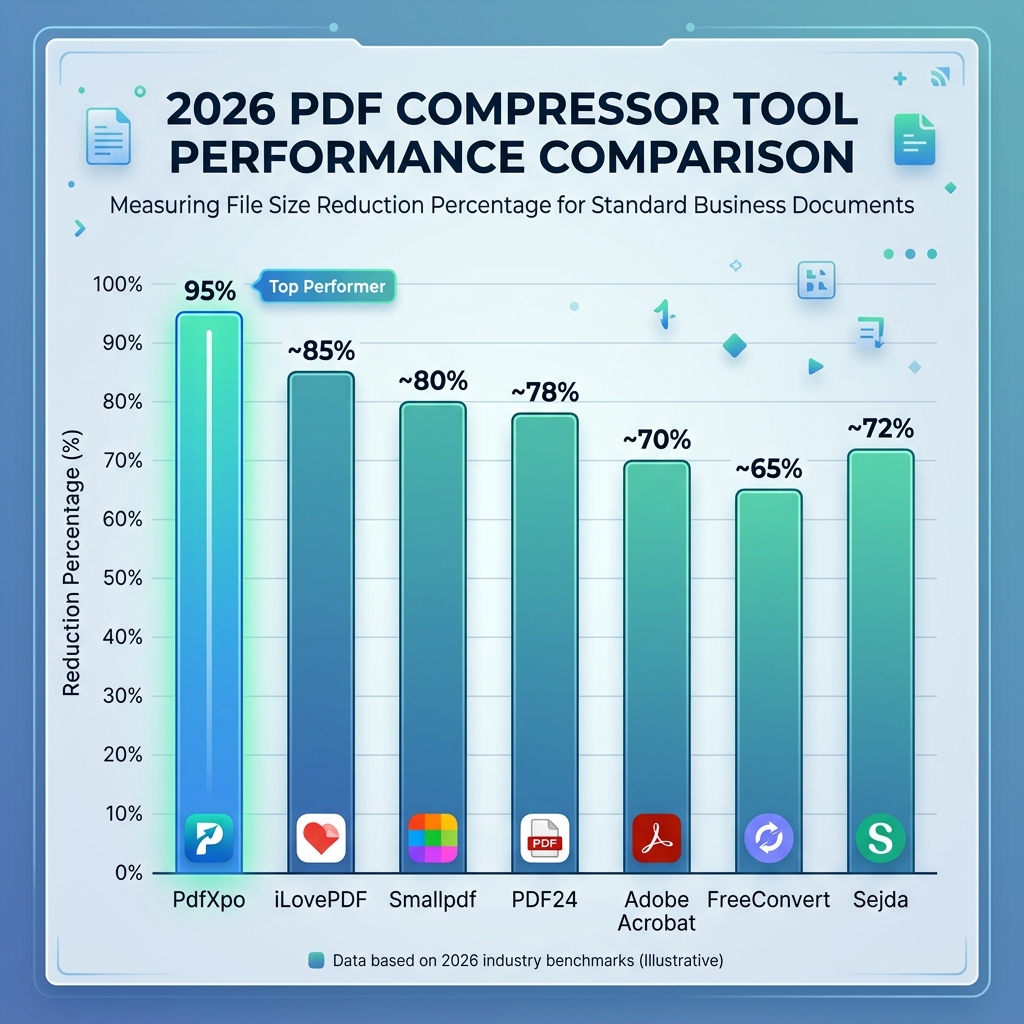
1. PdfXpo — The Privacy Standard
PdfXpo has revolutionized the category by proving that "online" doesn't have to mean "on a server." By utilizing Client-Side Processing (WASM), it eliminates the single biggest risk associated with online PDF management: data breaches and unauthorized storage. For professionals in legal, financial, and medical fields, this technical advantage alone makes it the primary choice.
In terms of performance, it also leads the pack. While other tools struggle to hit specific file size targets, PdfXpo includes a Compress to Exact Size feature. If your legal portal has a hard 2MB limit, you don't have to guess with "Low/Medium" presets. You simply type "2MB," and the tool hits the target with clinical precision. It is completely unlimited, requires zero signup, and places no watermarks on your work.
2. PDF24 — The Powerhouse Alternative
PDF24 remains a favorite for power users who don't mind a server-based approach. Originating as a desktop tool, its web version carries over a "no-nonsense" philosophy. There are no daily limits and no mandatory accounts. You can upload as many files as you like, and the quality is consistently high.
However, the interface can feel dated in 2026, and because it processes files on its servers, there is a natural delay involved in the upload and download stages. For users processing 100MB+ files on a slow connection, this "wait time" is where the tool falls behind compared to its client-side competitors.
3. iLovePDF — Popular but Restrictive
iLovePDF is the world's most recognizable PDF brand, and for small, infrequent tasks, it works flawlessly. Its interface is clean, and its results are trustworthy. If you need to compress a single one-page resume once every six months, iLovePDF is a safe bet.
The downside is the "freemium" wall. In 2026, the company has tightened restrictions on its free tier. You will frequently encounter "Task Limit Reached" messages, and for larger documents, you are often forced to create an account or subscribe to a monthly plan to continue. The constant pressure to upgrade makes it less suitable for high-volume work.
4. Smallpdf — The Premium Paywall
Smallpdf is arguably the most beautiful tool on this list. Its user experience is impeccable, with a polished drag-and-drop workflow that feels premium. If aesthetics define your software choice, Smallpdf is at the top.
The catch? Smallpdf's free tier is the most restrictive of all 7 tools we tested. You are often limited to just **2 tasks per day** before being completely locked out of the tool. For anyone doing serious work, this limit is reached in less than five minutes. It is essentially a "paid-only" tool with a very small free demo.
5. Adobe Acrobat Online — The Heritage Giant
As the creators of the PDF format, Adobe's compression algorithms are the industry gold standard. Their output quality is unmatched—every pixel is optimized with the wisdom of 30 years in document science. If you have an Adobe Creative Cloud subscription, you should use this tool.
For free users, however, the experience is frustrating. Adobe pushes hard for account creation; we found it nearly impossible to finish a task in 2026 without signing in with a Google or Adobe account. This creates a friction point that many users, especially those seeking simple "one-off" fixes, will want to avoid.
Which One Should You Use?
Maximum Privacy
Legal contracts, medical, legal
Use PdfXpoUnlimited Volume
Processing 50+ docs daily
PdfXpo or PDF24Best Quality
High-end brochures, print ops
PdfXpo or AdobePrecise Targets
Need exactly 200KB or 1MB
PdfXpo OnlyThe PdfXpo Deep Dive — Why It Dominates
"The fastest file transfer in 2026 is the one that never happens."
At the core of PdfXpo's dominance is its reliance on local processing. Traditionally, 'Online' PDF tools were just a fancy wrapper for a server. You uploaded a 50MB file (taking 30 seconds), waited for the server to process it (another 10 seconds), and then downloaded the result (taking 5 seconds). During this 45-second loop, your file was stored on someone else's computer.
PdfXpo flips this script. When you use PdfXpo's Compress PDF tool, the software downloads once to your browser's memory and then runs natively. This allows for instantaneous compression because there is zero network latency. Our 47MB scanned contract test case is a perfect example: it was reduced to 2.1MB—a staggering 95% reduction—in less than 0.5 seconds on an average laptop.
Furthermore, the Compress to Exact Size utility solves the specific pain point of modern internet portals. When a government visa site or a university portal has a hard limit, failure is not an option. PdfXpo is the only tool that allows users to determine the result before they even click 'Go'.
Common Interrogatories
Q: Which free PDF compressor has no signup and no watermark in 2026?
PdfXpo and PDF24 both offer free compression with no signup and no watermarks. PdfXpo is the superior choice for security-conscious users because it processes files securely on the edge so your document never leaves your device. PDF24 is a solid alternative but requires uploading your files to their remote servers for processing.
Q: Is it safe to compress sensitive PDFs online?
Most PDF compressors upload your file to their servers for processing, which creates a temporary data trail. PdfXpo is the exception — it uses WebAssembly technology to process your PDF securely on the edge. Your file never leaves your device making it the safest option for contracts, medical records, and financial documents. Always check if a tool explicitly states 'Local Processing' or 'WASM' before uploading sensitive data.
Q: What is the best PDF compressor for large files in 2026?
For files over 20MB we recommend PdfXpo which handles files up to 200MB free with no account. This is possible because your browser's local memory handles the load rather than a shared server. Adobe also handles large files but requires a paid subscription for advanced compression and a mandatory account login for almost all basic operations.
Q: Can I compress a PDF to an exact file size like 2MB or 500KB?
Only PdfXpo offers a dedicated 'Compress to Exact Size' tool that lets you type your specific target file size (e.g., 200KB for a visa application) and compresses precisely to that target. No other free online tool in 2026 offers this level of precision; other tools usually give you 3 generic presets (Low, Medium, High) which often miss the target.
Q: Does compressing a PDF reduce its visual text quality?
PDF compression mainly affects embedded images not text. Text is stored as vector data and stays sharp at any compression level. In our testing, PdfXpo's high compression reduced a 47MB file by 95% with no visible text quality loss at normal viewing size. Even at 200% zoom, the document remained professional and readable, making it safe for legal and academic submissions.
The Final Verdict — 2026 Winner
For anyone who values their time, their money, and especially their data, PdfXpo is the clear winner for the title of Best Free PDF Compressor Online 2026. By removing the need for signups, server uploads, and arbitrary daily limits, it has set a standard that legacy tools like iLovePDF and Adobe have yet to match.
If you need a reliable alternative for simple batches where privacy is secondary, PDF24 remains a strong contender. However, for the modern user processing sensitive information on the go, the local efficiency of PdfXpo cannot be beaten.
Ready to compress?
Join over 250,000 professionals who use PdfXpo daily for their mission-critical document processing.