Best Free CamScanner Alternative 2026: Scan Documents with Your Phone (No App Needed)
If you’ve ever tried to scan a document for an online application, you know the struggle. You search for a "scanner app," find one with millions of downloads, and then realize: it wants a monthly subscription, it puts a giant watermark on your file, or it fills your screen with ads just as you're trying to capture a photo of your ID.
Even worse, many of these apps upload your sensitive documents (like your passport or Aadhaar card) to their cloud servers. Mobile se scan kaise kare (How to scan from mobile) without risking your privacy?
The answer is PdfXpo Photo Scanner. This tool is a 100% free, browser-based CamScanner alternative that works on any smartphone (Android or iPhone). You don’t need to install anything, and your documents never leave your device.
Why Ditch Mobile Scanning Apps?
Most "Top 10 Scanner Apps" in 2026 share the same problems:
PdfXpo solves these issues by running entirely in your mobile browser (Sovereign Processing). It uses your phone's processor to enhance the image, meaning it’s faster, safer, and completely free. If your resulting scan is still too large for an email attachment, you can further optimize it with our standard Compress PDF utility.
How to Scan with Your Phone (Step-by-Step)
Scanning with PdfXpo is as simple as taking a selfie. Follow these steps to get a professional result:
1. Position and Lighting
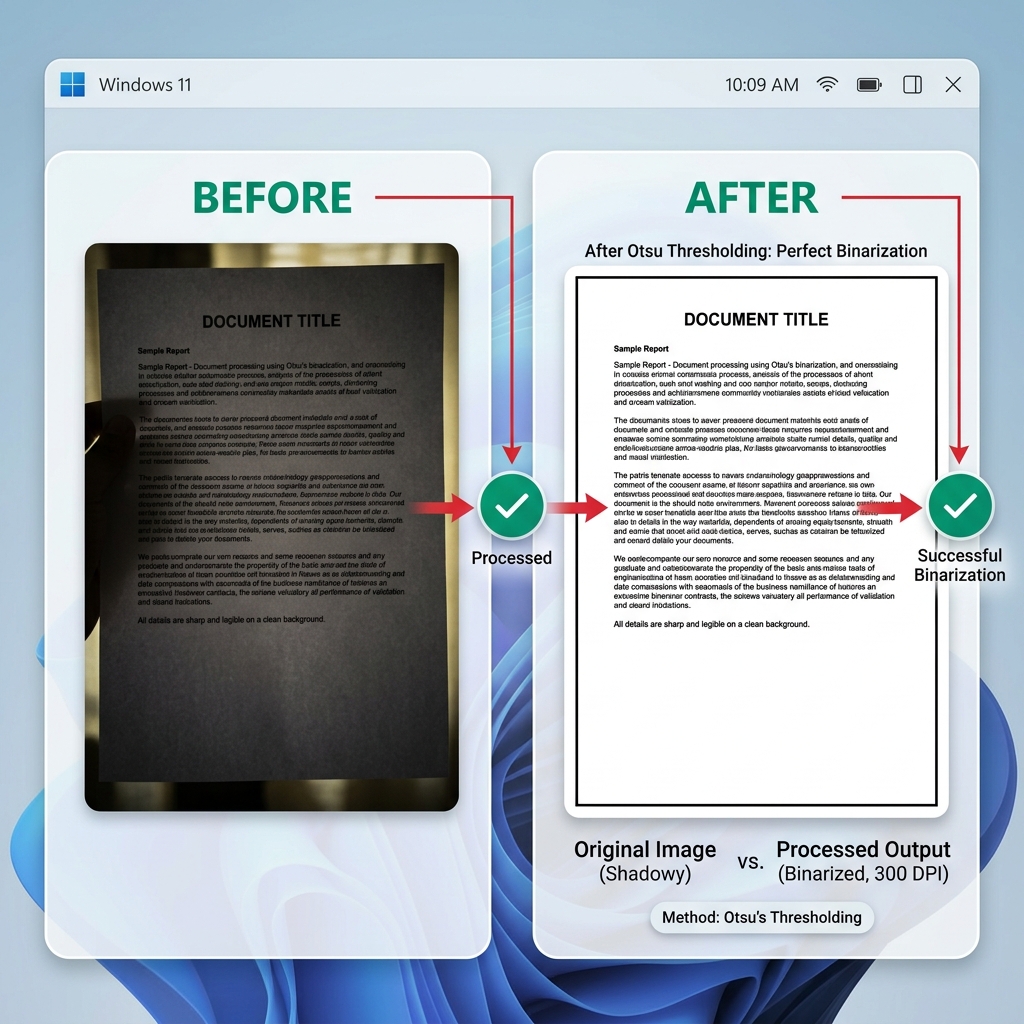
Find a flat surface with good lighting. Avoid shadows from your hand by tilting the document slightly or using a desk lamp. If the photo is too dark, don't worry—our AI will fix it, but good lighting helps the "Otsu Thresholding" algorithm perform better.
2. Take the Photo
Open pdfxpo.com/photo-scanner on your phone. Click "Take Photo". Your camera app will open automatically. Aim for the corners of the page and tap the capture button.
3. Auto-Enhance (Otsu's Thresholding)
This is the "magic" step. After you capture the photo, you will see three modes:
4. reorder and Add More Pages
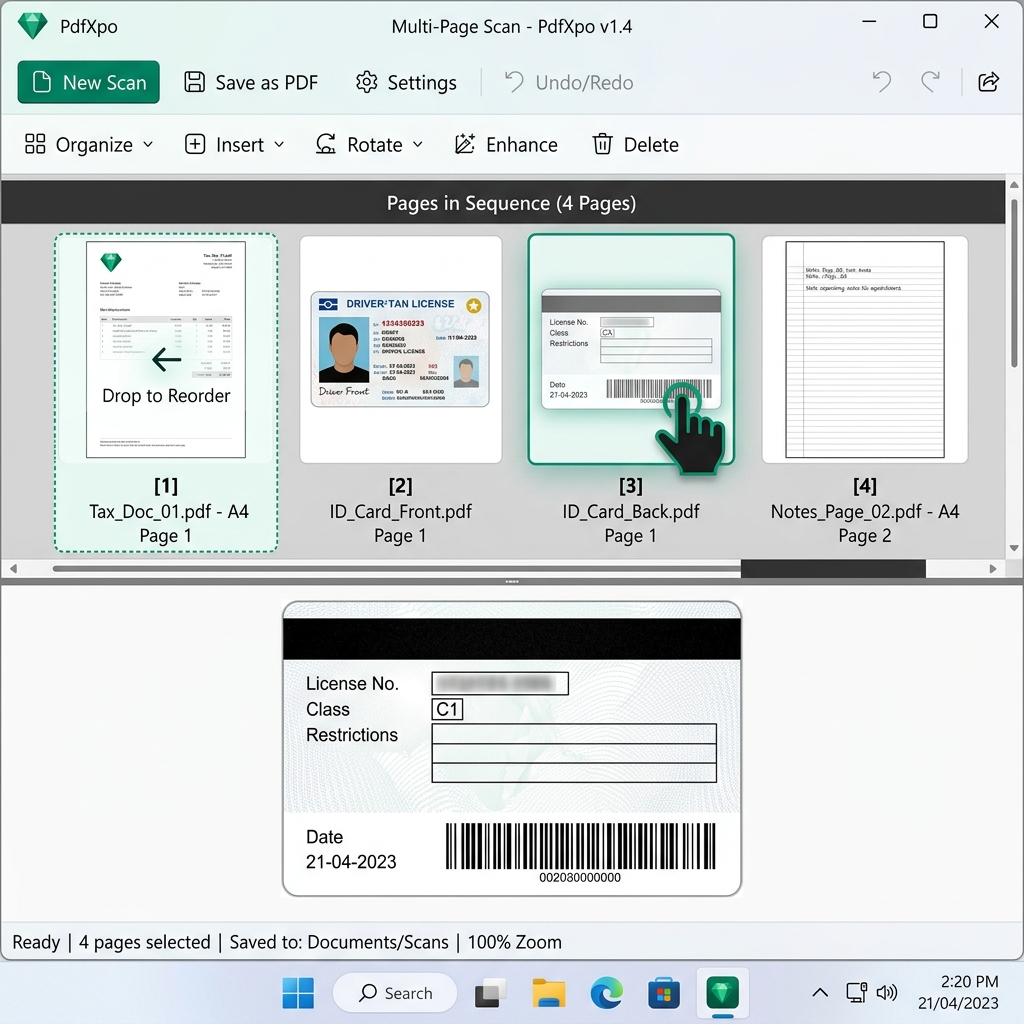
Need to scan a 5-page assignment? Just click "Add More" and repeat. You can then drag and drop the thumbnails to change the order. This is perfect for when you accidentally fly-captured page 3 before page 2.
5. Create and Download
Once you're happy, click "Create PDF". Your phone will generate the file instantly. No wait times, no "processing" bars that take minutes.
Local Guide: Scanning Aadhaar, PAN, and Student IDs
In India and many other regions, scanning identity cards (Aadhaar, PAN, Voter ID) is a daily requirement.
How to scan Aadhaar front and back into one PDF:
1. Open the scanner and take a photo of the front of the Aadhaar card.
2. Click "Add More" and take a photo of the back.
3. Select "B&W Scan" to make the text crisp and official-looking.
4. The tool automatically fits both onto a single A4 page (or keeps them as separate pages if you prefer).
5. Download and upload to your portal (e.g., e-KYC, bank applications, or scholarships).
"Mobile se PDF kaise banaye" - Pro Tips for Better Scans
FAQ
Q: Is this really a free CamScanner alternative?
A: Yes. Unlike CamScanner, PdfXpo has no watermarks, no ads, and no signup. Everything is processed on your device.
Q: Can I scan without an app?
A: Absolutely. PdfXpo works in your browser (Chrome, Safari, or Brave). You just need the URL.
Q: How do I turn a photo into a scanned PDF?
A: Upload your photo to our scanner tool and select "B&W Scan." This converts the pixels into a high-contrast format that looks like a professional office scan.
Q: Is my data safe?
A: Yes. This is a Sovereign Tool. Your photos are processed in the temporary memory of your browser and are never sent to a server.
---
Conclusion
Stop letting "Free" apps own your documents. Use the power of your browser to scan, enhance, and organize your files with PdfXpo. It’s faster, safer, and built for the modern mobile user.
Scan your first document now: [Go to Photo Scanner](https://pdfxpo.com/photo-scanner).