Best Free PDF Tools for Students in 2026 (No Signup, No Limits)
Students in 2026 deal with PDFs constantly. Lecture slides, assignment submissions, research papers, scanned notes, thesis drafts — everything is a PDF. And every time you need to do something simple like compress a file before uploading it to your university portal, or merge three readings into one study document, you hit the same wall: the tool wants you to sign up, charges for downloads, puts a watermark on your file, or limits you to two free uses per day.
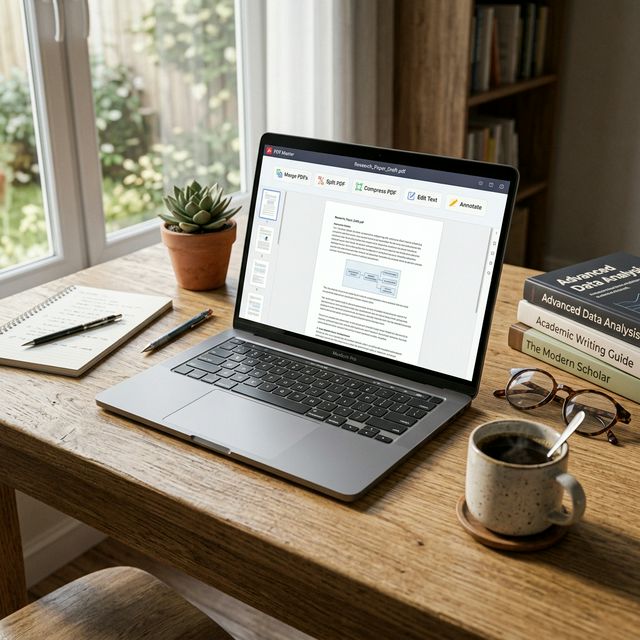
We have tested dozens of PDF tools to find the ones that genuinely work for students — no tricks, no paywalls, no daily limits. Here is what actually holds up in 2026.
Why Most "Free" PDF Tools Fail Students
The dirty secret of the PDF tools industry is that most free tiers are designed to frustrate you into upgrading. Smallpdf limits you to two tasks per hour. ILovePDF shows aggressive upgrade prompts. Adobe Acrobat online requires an account and then pushes you toward a $19.99/month subscription.
For a student who needs to process files every single day — sometimes dozens of files during exam season — these limits are genuinely unusable.
What students actually need is simple: tools that are free with no conditions, work on any device, require no signup, and do not put branding on their submitted work.
The Best Free PDF Tools for Students in 2026
1. PdfXpo — Best Overall Free PDF Suite for Students
PdfXpo is the strongest free PDF toolkit available for students in 2026. Every tool is completely free, there is no account required, and — critically — your files never leave your device. The tools that handle merging, splitting, compressing, rotating, and organizing PDFs all run locally in your browser using WebAssembly technology. Nothing is uploaded anywhere.
Here is what students use it for most:
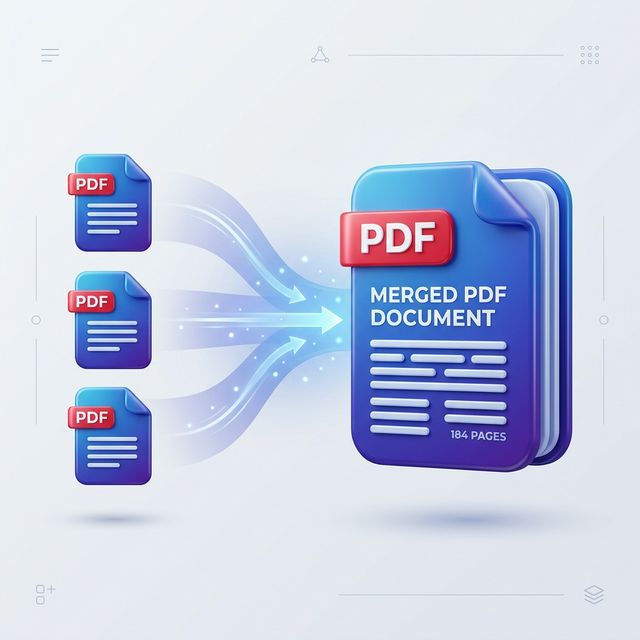
Merge PDF — combine lecture slides from multiple weeks into one revision file, or merge assignment sections into a single submission document. No file size cap. No limit on number of files. Use it at pdfxpo.com/merge-pdf.
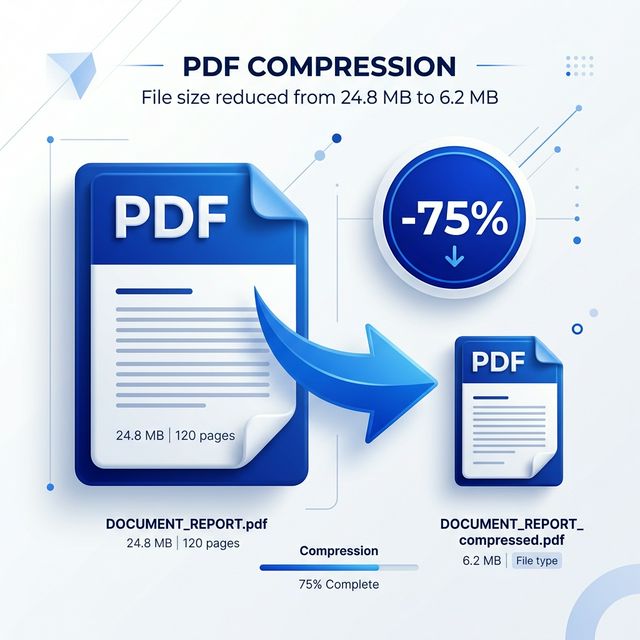
Compress PDF — university portals often cap uploads at 5MB or 10MB. Scanned assignments and high-resolution PDFs frequently exceed this. PdfXpo's compression reduces file size dramatically without losing readable quality. Try it at pdfxpo.com/compress-pdf.
Split PDF — extract specific chapters or page ranges from a large textbook PDF. Download only the sections you need for a particular topic. Available at pdfxpo.com/split-pdf.
PDF to Word — convert a PDF handout or reading into an editable Word document. Useful for annotating lecture notes or reusing content from course materials. Convert at pdfxpo.com/pdf-to-word.
Rotate PDF — fix scanned pages that came out sideways. Common problem with phone-scanned documents.
Organize PDF — reorder, delete, or rearrange pages within a PDF. Useful when compiling research from multiple sources.
OCR PDF — extract text from scanned documents so they become searchable and copyable. Essential for students working with older academic papers or handwritten notes that have been scanned.
Summarize PDF — use AI to generate a quick summary of a long document. Useful for getting an overview of a reading before deciding how much attention it needs.
The privacy aspect matters especially for students. When working with draft dissertations, unpublished research, or personal documents, you should not be uploading them to a stranger's cloud server. PdfXpo's local processing means your work stays yours.
2. PDF24 — Good Free Alternative with Desktop App
PDF24 offers a wide range of tools and is genuinely free with no usage limits. It also has a desktop app for Windows if you prefer offline use. The interface is less polished but it gets the job done. Note that it does upload files to their servers for processing, so factor that in for sensitive documents.
3. Sejda — Clean Interface, Limited Free Tier
Sejda has one of the best interfaces in the PDF tools space and handles complex tasks well. The free tier allows three tasks per hour, which works for occasional use. For daily student use, the limits become a problem.
4. LibreOffice — Best Offline Option
LibreOffice is free, open source, and works completely offline. It can open, edit, and export PDFs. For students who prefer not to use any online tool or who work in areas with unreliable internet, LibreOffice is the best fully offline alternative.
5. Your University's Provided Tools
Before going anywhere else, check what your university provides. Many institutions give students free access to Adobe Acrobat through their software licensing agreements. Check your university's IT services page — you may already have access to the full Adobe suite.
The Most Common PDF Tasks Students Need — Solved
Reducing file size before submission — use PdfXpo Compress PDF. Takes seconds, no upload required.
Combining multiple files into one — use PdfXpo Merge PDF. Drag and drop, no account needed.
Converting a PDF handout to editable format — use PdfXpo PDF to Word.
Extracting pages from a textbook — use PdfXpo Split PDF.
Making a scanned document searchable — use PdfXpo OCR PDF.
Getting a quick summary of a long reading — use PdfXpo Summarize PDF.
What to Look for in a Free Student PDF Tool
When choosing a PDF tool as a student, check for these five things:
No signup required — creating an account takes time and means another service has your email address. The best tools work without any registration.
No watermarks — a tool that puts its logo on your submitted assignment is unacceptable. Any tool that does this is not genuinely free.
No daily limits — during dissertation season or exam week you may need to process dozens of files. A three-per-day cap is useless.
Privacy protection — your work belongs to you. Look for tools that process files locally or delete them immediately after processing.
Works on any device — you need it to work on your laptop, your phone, a borrowed computer, and the library terminal without installing anything.
Are Browser-Based PDF Tools Safe?
This is a common question from students. The answer depends on the tool.
Tools that upload your files to a server (Smallpdf, ILovePDF, Sejda) process your files on their infrastructure. Reputable tools encrypt the transfer and delete files after processing, but your file does leave your device during that process.
Tools that process locally in your browser (PdfXpo for core tools like merge, split, compress) never send your file anywhere. The processing happens entirely on your device using your own computer's resources. This is the most private option available and requires no trust in a third party.
For assignment drafts, thesis chapters, or any document you would not want on a public server, local processing is the right choice.
Tips for Students Using PDF Tools
Compress before merging — if you are combining multiple large PDFs, compress each one first. The final merged file will be significantly smaller.
Use OCR on old papers — many academic papers from the 1990s and early 2000s are scanned images with no searchable text. Running OCR makes them searchable and allows you to copy quotes directly.
Keep originals — always keep the original file before converting or editing. PDF conversion is not always perfect and you may need the source.
Batch process during off-peak hours — if you are using a server-based tool, processing is usually faster during non-peak hours (early morning or late night).
Use the Organize tool for thesis compilation — when compiling a dissertation or long report from multiple sections, PdfXpo's Organize PDF tool lets you reorder pages visually before finalizing.
Frequently Asked Questions
Do I need to create an account to use PdfXpo?
No. Every tool on PdfXpo works without signup. You visit the tool page, upload your file, process it, and download the result. No account, no email, no subscription required.
Is it safe to use online PDF tools for my assignments?
For tools that process locally like PdfXpo's core tools, yes — your file never leaves your device. For server-based tools, use your judgment. Reputable tools encrypt transfers and delete files quickly, but if the document is sensitive, use a local-processing tool.
Can I compress a PDF without losing quality?
Yes. PDF compression reduces file size by optimizing internal data, removing embedded metadata, and compressing images intelligently. For typical student documents the reduction is significant with no visible quality loss. Try PdfXpo Compress PDF.
What is the best free PDF to Word converter for students?
PdfXpo's PDF to Word converter is the best free option for students. It processes locally, requires no signup, and handles standard text-based PDFs well.
Can I use these tools on my phone?
Yes. PdfXpo and most browser-based tools work on mobile browsers. No app download required.
Final Verdict
For students in 2026, PdfXpo is the best free PDF toolkit for everyday use. It covers every common student PDF task, requires no signup, puts no watermark on your files, and keeps your documents private by processing them locally in your browser.
For offline use, LibreOffice is the best free backup. For occasional high-quality conversion where privacy is less of a concern, Sejda or PDF24 are solid alternatives.
Start at pdfxpo.com — no account needed, no limits, no watermarks.