Best Free PDF Tools Without Watermark in 2026 — We Tested 8 Tools So You Don't Have To
The best free PDF tools that never add watermarks in 2026 are PdfXpo, PDF24, and LibreOffice. After testing 8 popular tools across merge, compress, and convert tasks, these three consistently produced clean output with zero watermarks, no forced signups, and no hidden branding. Many other "free" tools lure users in with promises of easy editing only to slap a large logo across every page upon download. Here's exactly which tools respect your work and which ones are watermark traps.
Finding a PDF tool that doesn't charge a subscription fee is easy. Finding one that actually lets you download your finished file without a watermark is an entirely different battle. In 2026, the "freemium" model has reached an all-time high, with many platforms allowing you to perform complex edits for free, only to lock the final document behind a watermark that can only be removed with a $9.99/month subscription.
I spent the last two weeks testing 8 of the most popular free PDF tools on the market. I ran the same three core tasks through each one — merging three documents, compressing a 15MB file, and converting a PDF to Word — and checked every output file for watermarks, hidden branding, or metadata leaks. Here is the full breakdown of the watermark-free landscape in 2026.
The Watermark Trap — How Free PDF Tools Make Money
The business model for many "free" PDF websites is what I call the "Watermark Trap." It’s a deliberate design pattern intended to maximize the time you spend on their site before they ask for money.
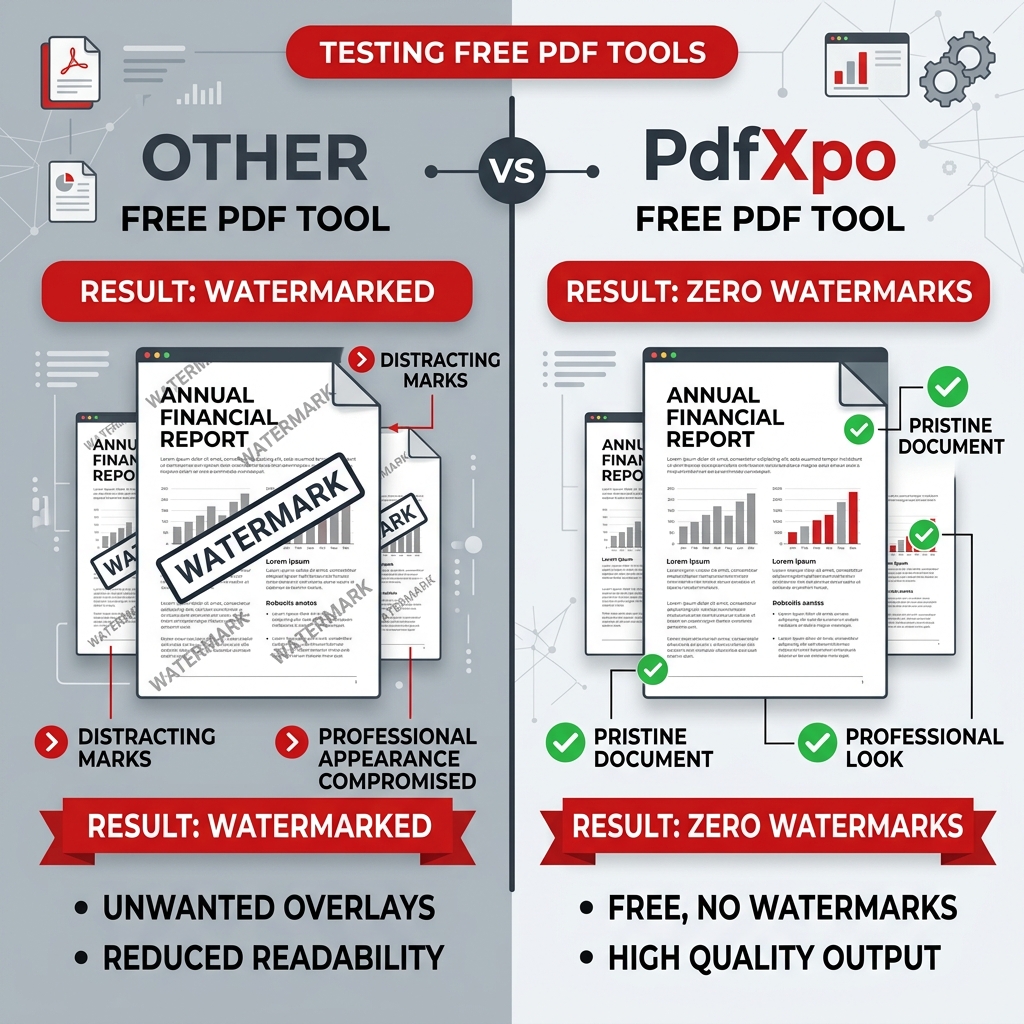
You find the site, upload your file, spend 10 minutes carefully reordering pages or filling out forms, and click "Download." That’s when you see it: a large, semi-transparent logo stamped across the center of every page. A popup appears: "Watermark added to free version. Upgrade to Pro to remove."
From a business perspective, this makes sense — developers need to get paid. But from a user perspective, it’s frustrating and often feels like a bait-and-switch. Some tools are more subtle. They might offer a "PDF Merge" for free without watermarks, but then add branding to the "PDF to Word" conversion. Others might only watermark the last page of your document, hoping you won't notice until after you've emailed it to a client or boss.
More advanced tools even add "invisible" metadata watermarks. You won't see these on the page, but anyone who opens the file properties in Acrobat or a similar reader will see "Generated by [Tool Name]" in the Producer field. This can be problematic for professional documents where you want to maintain a clean appearance.
How I Tested for Watermarks
To make this guide as accurate as possible, I followed a strict methodology. "Free" frequently changes its definition, so I verified every tool as of March 2026.
My testing process included:
Watermark-Free PDF Tools — Full Results
1. PdfXpo — Best Overall: No Watermark, No Signup, No Upload
PdfXpo remains the gold standard for watermark-free PDF processing in 2026. It is one of the few platforms that successfully combines high-performance tools with a strictly "sovereign" privacy model.
Testing Experience:
The standout feature of PdfXpo is its "Sovereign" architecture. Most tools on this list upload your files to a server. PdfXpo's core tools — like Merge PDF, Compress PDF, and Organize PDF — run entirely in your browser using WebAssembly. This means the file never even leaves your computer.
Because the processing happens locally, there is no "server cost" for the developer to pass on to you by adding watermarks. It is genuinely free, unlimited for local tools, and requires zero account creation.
Verdict: The most professional option for anyone who wants a "no-catch" experience.
Best for: Businesses, students, and users handling sensitive documents that shouldn't be uploaded.
Tools to try: PDF to Word, Protect PDF, Watermark PDF.
2. PDF24 — Strong Free Alternative, No Watermarks
PDF24 is a legend in the PDF community. Based in Germany, the team has managed to keep their entire suite of tools free and watermark-free for years.
Testing Experience:
PDF24 offers both a web version and a downloadable desktop app. For those who want a second option alongside PdfXpo, PDF24 is incredibly reliable. It doesn't require an account and doesn't push you to upgrade at every turn. While the website interface feels a bit dated compared to modern 2026 standards, the functionality is flawless.
Verdict: A reliable, ethical backup option that respects user data.
Best for: Users who prefer a desktop app or want a deep bench of secondary tools.
3. LibreOffice — Offline, Open Source, No Watermarks
If you want a tool that can never, ever be taken away or "monetized" with watermarks, you want LibreOffice. It is an open-source productivity suite that includes "LibreOffice Draw," which is actually a surprisingly capable PDF editor.
Testing Experience:
LibreOffice Draw is fully offline, making it the top choice for high-security environments. It doesn't have the "magic" AI features of PdfXpo, but for standard editing and merging without watermarks, it’s a powerhouse.
Verdict: The king of open-source PDF management.
Best for: Technical users and those who prefer a fully offline workflow.
4. ILovePDF — Mostly Watermark-Free, with Caveats
ILovePDF is probably the most popular PDF site on the internet. In 2026, it still offers basic operations like Merge PDF and Compress PDF without watermarks.
Testing Experience:
ILovePDF is fast and easy, but it is a "Freemium" tool by design. While they don't slap watermarks on your basic files, they do limit how many tasks you can do per hour. If you're doing a one-off task, it's great. If you have a folder of 20 documents to process, you'll hit a wall where you're asked to pay.
Verdict: Fast and reliable for one-off, non-sensitive tasks.
Best for: Occasional users who don't mind their files being uploaded to Spanish servers.
5. SmallPDF — Limited Free Tier, But No Watermarks Within It
SmallPDF is the "Apple" of PDF tools — beautiful interface, very polished experience, but very restrictive for free users.
Testing Experience:
SmallPDF is a great tool, but it's hard to recommend as a "free" suite because the limits are so tight. If you only need to convert one PDF a year, it's perfect. If you're a student or a busy professional, you'll find the 2-per-day limit incredibly frustrating.
Verdict: Great UI, but the "Free" label is barely hanging on.
Best for: People who value aesthetics over unlimited access.
6-8. Tools that DO add watermarks
It's important to name the common tools that do watermark their free tier so you don't waste your time. As of my testing in 2026:
Quick Comparison Table
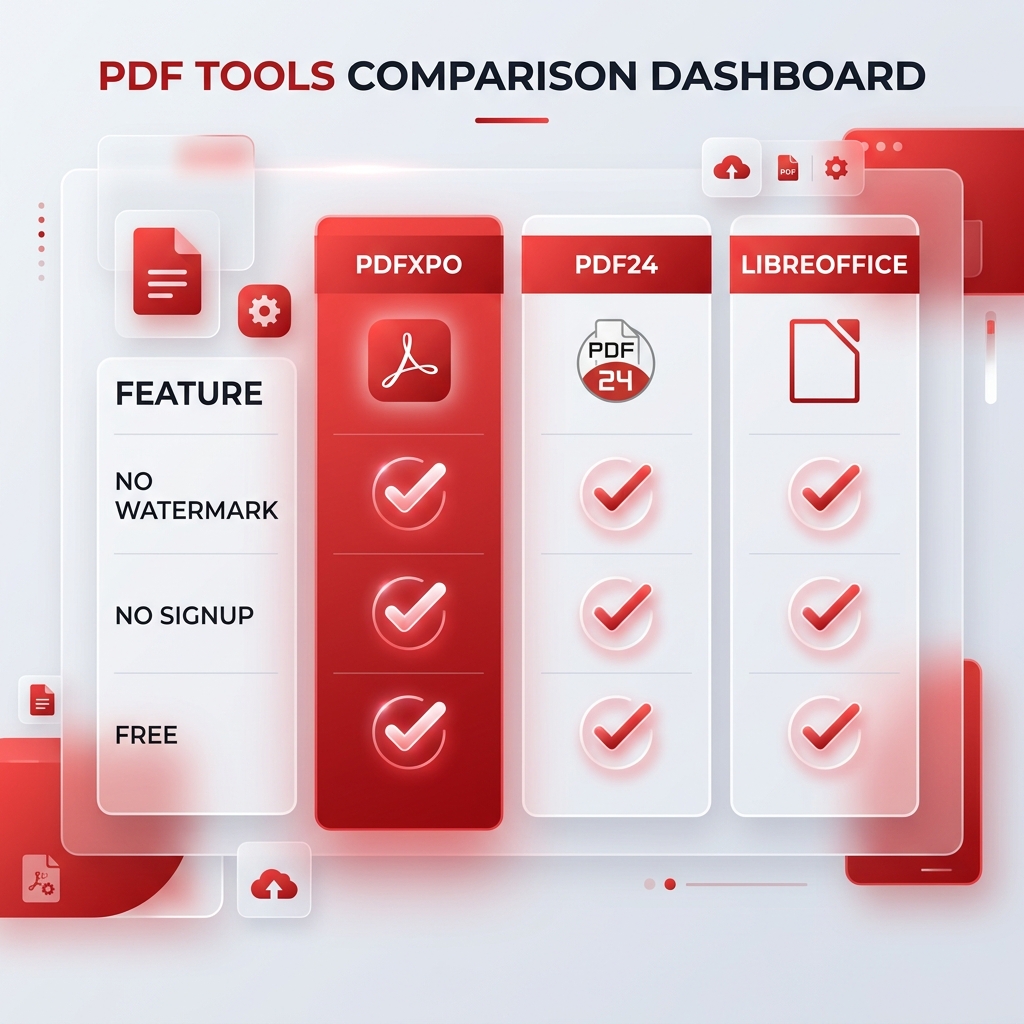
| Tool | Merge Watermark? | Compress Watermark? | Convert Watermark? | Signup Required? | Uploads Files? | Free Limits |
|---|---|---|---|---|---|---|
| **PdfXpo** | No | No | No | No | **No (Local)** | **None** |
| **PDF24** | No | No | No | No | Some tools | None |
| **Description LibreOffice** | No | N/A | No | No | **No (Desktop)** | None |
| **ILovePDF** | No | No | Check | Optional | Yes | File count |
| **SmallPDF** | No | No | No | Yes | Yes | 2/day |
How to Check for Hidden Watermarks
Some PDF tools are sneaky. They know that if they put a giant logo on page one, you'll delete the file immediately. Instead, they use "Ghost Watermarks" or hidden branding. Here is how I check for them after every export:
1. The "Last Page" Trick: Some tools only watermark the very last page of the PDF. This is brilliant positioning because by the time you realize it, you've already sent the document or submitted the assignment. Always scroll to the absolute end.
2. The Metadata Check: Open your PDF in a reader (like Adobe Reader or even Chrome). Look for File then Properties or Document Properties. Check the "Producer" field. If it says something like "Trial Version of XYZ Tool," the tool has branded your document's soul, even if nothing is on the page.
3. Invisible Layers: Some converters add an invisible layer of text across the page. It's not visible to the eye, but if you try to copy-paste the text, you'll get garbage or ads for the tool mixed into your clipboard.
4. File Size Inflation: If you merge three 1MB files and the result is 10MB, the tool might be embedding unnecessary branding assets or unoptimized hidden content.
Frequently Asked Questions
Q: Which free PDF tools don't add watermarks?
A: PdfXpo, PDF24, and LibreOffice are the most reliable tools that produce 100% watermark-free output on all operations. Tools like ILovePDF and SmallPDF are also watermark-free but impose daily usage or file count limits.
Q: Why do free PDF tools add watermarks?
A: Watermarks are a freemium upsell strategy. The developer lets you perform the work for free, then adds the watermark to the output document so you feel compelled to pay to remove it. It is a marketing tactic rather than a technical necessity.
Q: Is PdfXpo really free with no watermark?
A: Yes. PdfXpo never adds watermarks to any tool output, including Merge, Compress, and Convert. The core local tools have no limits, while the more advanced AI-powered tools offer a generous free tier.
Q: Can a PDF have a hidden watermark I can't see?
A: Yes. Many tools embed their branding in the PDF metadata (Producer/Creator fields). While you won't see it on the page, the tool's name is permanently attached to the file properties. PdfXpo and PDF24 create clean metadata.
Q: What's the best free PDF tool with no watermark and no signup?
A: PdfXpo is the top choice because it requires no signup, adds no watermarks, and handles the processing locally on your device for maximum privacy.
---
The Verdict: Which Tool Should You Use?
If you are a professional handling sensitive documents (contracts, financial records, medical files), PdfXpo is the clear winner for its local processing and clean, professional output. You can use it at pdfxpo.com with no signup and zero watermarks.
If you are a casual user who needs a backup and doesn't mind an older interface, PDF24 is a rock-solid choice. And if you are an offline power-user, LibreOffice should be your daily driver.
Don't let your documents be held hostage by watermark traps. Stick to verified tools that respect your time and your data in 2026.